Hard drive partitioning is a crucial skill for anyone working with computers, enabling optimized storage and enhanced system performance. This guide walks you through the process, from understanding the basics to tackling advanced techniques. We’ll explore various methods, considerations, and troubleshooting steps, ensuring you have a solid foundation for managing your storage effectively.
From the fundamental concepts of primary and logical partitions to the intricacies of different file systems, this guide provides a thorough understanding of the process. We will cover the essential steps for successful partitioning, including crucial pre-partitioning steps like data backups, and discuss specific use cases, such as installing multiple operating systems or dedicating space for different types of data.
Introduction to Hard Drive Partitioning

Hard drive partitioning is a fundamental process in computer storage management. It involves dividing a hard drive or solid-state drive (SSD) into distinct sections, known as partitions. This division allows for better organization, security, and optimized use of storage space. Each partition can be formatted with a specific file system, such as NTFS or FAT32, tailoring it to the needs of different operating systems or applications.This structured approach provides a clear separation of data, simplifying data recovery, backups, and operating system installations.
Efficient partitioning also improves overall system performance by allocating resources appropriately to different components. By understanding the process and its implications, users can effectively manage their storage space and enhance the functionality of their computer systems.
Hard Drive Partition Types
Partitioning a hard drive allows for a tailored approach to data organization. Different partition types serve specific purposes. Understanding these distinctions is crucial for effective management.
- Primary Partitions: These are the most common type. They can hold an operating system (OS) or other essential data. A hard drive can have multiple primary partitions, but the maximum number is often limited by the specific hard drive and operating system. Primary partitions are generally used to store operating systems, essential applications, and frequently accessed data.
- Extended Partitions: An extended partition is a special type that allows you to create additional partitions within it. This is useful for dividing storage space into logical partitions for specific functions. It acts as a container for multiple logical partitions, thereby creating a logical structure within the overall partition scheme. An extended partition can improve organizational structure, particularly when handling substantial amounts of data.
- Logical Partitions: These partitions reside within an extended partition. Logical partitions offer a flexible way to organize and manage data by creating separate storage areas for specific tasks or applications. They can be used to create multiple partitions for different operating systems, applications, or data types.
Advantages of Partitioning
Partitioning a hard drive offers several benefits, enhancing system performance and organization.
- Data Organization: Partitioning allows for better organization of data by segregating different types of files and applications into distinct partitions. This structure enhances data accessibility and simplifies data management.
- Improved System Performance: Partitioning can optimize system performance by allocating resources effectively to different partitions. This can lead to quicker loading times and overall system responsiveness, particularly in complex systems with various operating systems or applications.
- Enhanced Security: Partitioning allows for separate security configurations for different partitions. This can help to isolate sensitive data and prevent unauthorized access. For example, a partition dedicated to personal data can have different security measures than a partition dedicated to the operating system.
- Backup and Recovery: Partitioning simplifies backup and recovery processes. Backing up individual partitions ensures that critical data is not lost during system failures or other events.
Disadvantages of Partitioning
While partitioning offers many benefits, it’s important to be aware of potential drawbacks.
- Complexity: Partitioning can be more complex than simply using a single drive. Misconfigurations can lead to data loss or system instability. Understanding the process and implications is critical for successful partitioning.
- Potential for Data Loss: Incorrect partitioning procedures can lead to data loss. It’s crucial to create backups before any partitioning operation to safeguard important data.
- Limited Space: Partitioning can potentially lead to a reduction in the usable storage space, depending on the partitioning scheme.
Simple Partitioning Process Overview
A well-defined step-by-step approach is crucial for effective hard drive partitioning. Follow these steps for a smooth partitioning process:
- Backup Important Data: Before starting any partitioning, it’s crucial to create a comprehensive backup of all important data. This precaution protects against data loss during the partitioning process.
- Choose Partitioning Software: Select a reputable partitioning software tool. Many are available for both Windows and macOS.
- Partition the Hard Drive: Using the chosen software, define the size and type of each partition.
- Format the Partitions: Select the appropriate file system (e.g., NTFS, FAT32) for each partition. This step prepares the partition for data storage.
- Verify the Configuration: Thoroughly review the partitioning scheme to ensure it aligns with your requirements.
Partition Type Table
The following table summarizes the different partition types, their purposes, and typical use cases.
| Partition Type | Purpose | Typical Use Case |
|---|---|---|
| Primary | Hold an OS or other essential data | Main operating system, essential applications |
| Extended | Container for multiple logical partitions | Multiple operating systems, dedicated storage areas |
| Logical | Reside within an extended partition | Data storage, specific application installations |
Choosing the Right Partitioning Method

Selecting the appropriate partitioning method is crucial for optimizing hard drive or SSD performance and data security. Different partitioning tools offer varying levels of control and complexity, making informed choices essential for maximizing the usability of your storage device. Understanding the strengths and weaknesses of each tool and the implications for your intended use will ensure your data is well-organized and accessible.
Available Partitioning Tools
Various tools are available for partitioning hard drives and SSDs. Familiarity with their features and limitations is vital for making the right decision.
- Disk Management (Windows): Built into Windows operating systems, Disk Management provides a user-friendly interface for basic partitioning tasks. It’s straightforward to use for simple operations like creating and deleting partitions, formatting, and modifying drive letters. However, its advanced features are limited compared to dedicated third-party tools.
- GParted: A powerful, open-source tool, GParted offers a comprehensive set of features for advanced partitioning tasks. It supports a wide range of file systems and provides graphical control over complex partitioning schemes. Its cross-platform nature allows for flexibility and control across different operating systems. However, its graphical interface, while functional, may not be as intuitive for beginners as Disk Management.
- Other Third-Party Tools: Numerous commercial partitioning software options exist, often providing advanced features, detailed control, and comprehensive support for various operating systems and storage devices. These tools cater to specialized needs and offer more complex functionality than Disk Management. They often include advanced features like resizing partitions, converting file systems, and supporting multiple operating systems on a single device. Examples include Paragon Partition Manager and MiniTool Partition Wizard.
Comparing Partitioning Tools
The choice of partitioning tool depends on the complexity of the task and the user’s technical proficiency. A well-informed decision is crucial for preventing data loss and ensuring efficient use of storage space.
| Tool | Ease of Use | Features | Compatibility |
|---|---|---|---|
| Disk Management | High | Basic | Windows only |
| GParted | Medium | Advanced | Cross-platform (Windows, Linux, macOS) |
| Third-Party Tools | Variable | High | Wide |
Partitioning for Operating Systems and Data Storage
Careful planning is essential when partitioning for operating systems and data storage. This ensures optimal performance and security. Dedicated partitions for operating systems provide stability and facilitate easier recovery in case of system issues.
- Operating System Partition: Creating a separate partition for the operating system (OS) is recommended. This isolates the OS from data and simplifies OS upgrades or reinstalls without affecting critical user data. The size of this partition should be determined based on the OS requirements and expected future needs. Consider allocating at least the minimum recommended space for smooth operation.
- Data Partition: A dedicated partition for data storage provides organizational structure and protection against data loss. Separating data from the OS reduces the risk of losing critical files if the operating system malfunctions. The size of the data partition depends on the anticipated amount of data to be stored.
- File Systems: Selecting the appropriate file system (e.g., NTFS, FAT32, ext4) is crucial. The choice should align with the operating system and the intended use of the partition. Different file systems offer varying levels of performance, security, and compatibility.
Preparing for Partitioning
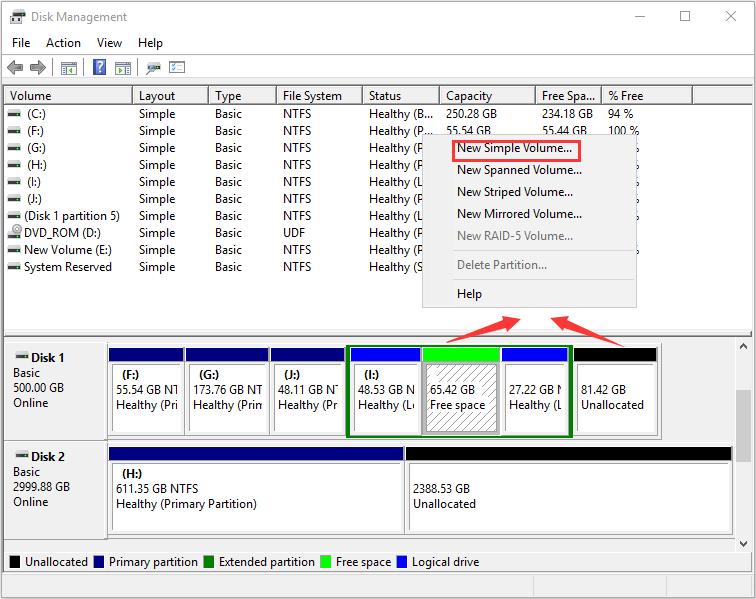
Proper preparation is crucial for a successful hard drive or SSD partitioning process. Ignoring these steps can lead to data loss, corrupted partitions, and system instability. This section details the importance of backing up data, potential risks, best practices, and assessing drive health.Thorough preparation mitigates the risk of data loss and ensures a smooth transition to the new partition scheme.
A well-defined backup strategy and a clear understanding of the drive’s condition are fundamental to a successful partitioning operation.
Importance of Data Backup
Data loss during partitioning is a significant concern. Improper partitioning, errors during the process, or unforeseen circumstances can render data inaccessible. A comprehensive backup strategy is essential to protect against these risks.
Potential Risks of Partitioning Without Backups
Partitioning without backing up data carries substantial risks. Errors during the partitioning process can render the entire drive unusable. A faulty partition table or a corrupted file system can lead to data loss and system instability. Furthermore, accidental deletion of critical system files during partitioning can render the system inoperable.
Best Practices for Data Backup and Recovery
Implementing a robust backup and recovery plan is critical. Regular backups of all critical data to an external drive, cloud storage, or other reliable media are essential. Utilize reputable backup software for automated backups and version control. Establish a recovery plan that details how to restore data in case of a failure. This includes testing the backup and recovery procedures to ensure they function correctly.
Understanding Drive Capacity and Current State
Before partitioning, a clear understanding of the drive’s capacity and its current state is vital. Knowing the amount of free space and the current partitions on the drive helps in planning the partitioning strategy. This involves checking for errors and potential issues.
Checking Drive Health and Identifying Potential Issues
Regularly checking the drive’s health is crucial. Utilizing built-in tools or specialized diagnostic software can reveal potential issues. These tools can identify bad sectors, errors, or inconsistencies that could affect partitioning. For instance, the Windows Disk Management utility can display drive health status and identify any issues. Other tools can provide detailed information about the drive’s internal state.
Knowing the drive’s health helps in making informed decisions about partitioning and allows for proactive measures to avoid potential problems. Regular checks help prevent unexpected failures during partitioning or later. A healthy drive increases the chances of successful partitioning. Identifying and addressing potential issues before partitioning prevents data loss and system problems.
Creating Partitions
Partitioning a hard drive or SSD allows you to divide the storage space into separate sections, each acting as an independent drive. This crucial step enables better organization, data security, and optimal performance. Proper partitioning is essential for managing different operating systems, applications, and user data effectively.
Creating Primary Partitions
Primary partitions are fundamental components in hard drive organization. They are directly accessible and can hold operating systems or data. To create a primary partition, you typically use a disk management utility (such as the one built into Windows or macOS Disk Utility). These utilities guide you through the process, allowing you to specify the size and file system of the new partition.
The creation of a primary partition is a straightforward process, although the exact steps may vary depending on the operating system and the utility used.
Creating Extended Partitions and Logical Drives
An extended partition acts as a container for multiple logical drives. It’s crucial to understand that an extended partition itself cannot hold data directly; it solely serves as a structure to house logical drives. Logical drives, in turn, are independent partitions within the extended partition, offering flexibility in managing storage space. Using an extended partition allows for a more granular division of the storage space, enabling users to tailor the hard drive to their specific needs.
Formatting Partitions for Different File Systems
Formatting a partition involves preparing it to store data using a specific file system. The file system dictates how data is organized and accessed on the partition. Different file systems cater to various needs, offering varying degrees of performance, security, and compatibility. Common file systems include NTFS, FAT32, and ext4. The selection of the appropriate file system depends on the operating system and the type of data to be stored.
Allocating Space to Partitions
Allocating space to partitions involves specifying the size of each partition. Careful allocation is vital to ensure sufficient space for each component. Over-allocating space to a partition is generally less problematic than under-allocating, but it can lead to wasted space. Conversely, insufficient space in a partition can cause issues with data management and potential data loss. Proper allocation depends on the user’s requirements and anticipated data volume.
File System Comparison
| File System | Pros | Cons | Recommended Use |
|---|---|---|---|
| NTFS | Robust, widely compatible with Windows, supports advanced features like encryption. | Not compatible with all operating systems, can be less efficient on non-Windows systems. | Windows systems, where compatibility and robustness are prioritized. |
| FAT32 | Highly compatible across various operating systems, simple and efficient. | Limited file size and cluster size restrictions, not ideal for large files. | Flash drives, portable storage devices, legacy systems where compatibility is paramount. |
| ext4 | Robust and efficient file system, widely used in Linux systems, supports large files. | Limited compatibility with non-Linux systems. | Linux systems, large file storage, where performance and reliability are crucial. |
This table provides a comparative overview of common file systems, highlighting their strengths, weaknesses, and suitability for specific use cases. Choosing the right file system is critical to ensure efficient and compatible data storage.
Partitioning for Specific Use Cases
Proper partitioning of your hard drive or SSD can significantly enhance its functionality and efficiency. By strategically dividing the storage space, you can optimize performance, maintain data integrity, and ensure smooth operation for various tasks. Understanding specific use cases, such as installing multiple operating systems or dedicating space for specific applications, is crucial for realizing the full potential of your storage device.
Partitioning for Multiple Operating Systems
Installing multiple operating systems on a single machine requires careful partitioning. Each operating system needs its own dedicated partition to function properly. This approach allows you to switch between operating systems without affecting the files or settings of the other. Creating separate partitions ensures data isolation and simplifies the process of installing and managing each operating system independently.
For example, having Windows and Linux on separate partitions allows you to easily switch between them without worrying about data conflicts. A critical aspect of this partitioning strategy is ensuring each partition has sufficient space to accommodate the operating system and its associated files.
Partitioning for Dedicated Storage
Dedicated partitions can be created for specific types of data or applications. For example, a partition for storing frequently accessed applications can significantly improve application load times. Similarly, a dedicated partition for storing media files, such as photos and videos, helps to keep the operating system and frequently used files organized. This approach provides efficient access and management of specific data sets.
Moreover, allocating a partition for backups allows you to safeguard crucial data separately from the main operating system partition.
Partitioning for Recovery Partitions
Recovery partitions are crucial for restoring the operating system to a working state in case of a system failure. Creating a dedicated recovery partition ensures that essential system files remain intact and accessible during a system restoration process. This partition is typically pre-configured by the manufacturer or installed during the operating system installation process. The size of this partition is typically small, but it is essential for data recovery.
It often contains crucial system files and boot-related data.
Partitioning for Specific Software or Applications
Certain software applications may require specific partitioning requirements. For example, some video editing applications or large-scale databases may necessitate dedicated partitions for optimized performance. Proper partitioning can significantly improve the speed and efficiency of these applications by isolating them from the operating system and other applications. This helps to minimize interference and maximize performance. Understanding the specific needs of the software or application is key to ensuring efficient partitioning.
Partitioning Requirements for Different Use Cases
This table Artikels suggested partition setups for gaming, media, and archival storage. These examples demonstrate how different partitioning schemes can meet specific needs, but the ideal setup may vary depending on your specific hardware and software configurations.
| Use Case | Partition 1 (OS) | Partition 2 (Gaming) | Partition 3 (Media) | Partition 4 (Archival) |
|---|---|---|---|---|
| Gaming | Windows/Linux OS (50GB-100GB) | Dedicated Gaming (100GB-200GB+) | Media (100GB+) | Archival (100GB+) |
| Media | Windows/Linux OS (50GB) | Gaming (50GB) | Media (150GB+) | Archival (100GB+) |
| Archival | Windows/Linux OS (50GB) | Gaming (50GB) | Media (50GB) | Archival (150GB+) |
Troubleshooting Partitioning Issues

Partitioning hard drives and SSDs, while often straightforward, can sometimes lead to unexpected problems. Understanding potential issues and their solutions is crucial for maintaining data integrity and preventing irreversible data loss. This section details common problems encountered during partitioning, methods for resolving errors, and strategies for recovering lost partitions.Partitioning errors can stem from various factors, including software glitches, hardware failures, or user mistakes during the partitioning process.
A systematic approach to identifying and addressing these issues is essential to ensure a smooth and successful partitioning outcome.
Common Partitioning Errors
Recognizing common errors during the partitioning process allows for timely intervention and prevents further complications. These errors often manifest as unexpected system behavior, unreadable partitions, or complete inability to access the drive. Common errors include:
- Incorrect Partition Table Format: Choosing the wrong partition table format for the target drive (e.g., using GPT on an MBR-formatted drive) can result in the drive becoming unreadable. This often arises from mismatched drive configurations or improper tool usage. Such mismatches can prevent the system from correctly reading and interpreting the drive structure.
- Partition Corruption: Data corruption within partition tables or file systems can cause the system to report errors. This can be triggered by power surges, abrupt shutdowns, or software conflicts. Symptoms include inaccessible files, errors during data access, and potentially loss of partition data.
- Partition Overwriting: Accidentally overwriting an existing partition during the partitioning process can lead to data loss. This often happens during improper formatting or repartitioning procedures, particularly if the user is not careful in their partitioning steps. Incorrect or premature formatting can render data on the target partition unrecoverable.
Resolving Partition Errors
Partition errors can be addressed using a combination of system tools and specialized recovery software. Proper identification and diagnosis are key to effectively resolving these issues. Following these steps helps to effectively diagnose and resolve these issues:
- Verify Drive Health: Utilize built-in system tools or dedicated diagnostic software to assess the health of the hard drive. This step helps to identify hardware-related issues that may contribute to partitioning problems. If the hard drive is failing, immediate action is needed to prevent further data loss.
- Check Disk Integrity: Use the operating system’s built-in disk checking utility (e.g., chkdsk on Windows) to verify and repair any file system errors. This helps ensure data integrity within the affected partition. By repairing these errors, data access and system stability can be restored.
- Use Specialized Partition Recovery Software: Employ specialized software designed for recovering lost or corrupted partitions. These tools can help to reconstruct partition tables, recover lost data, and repair file systems. Recovery software may offer options for advanced data recovery, allowing for careful retrieval of crucial data from damaged partitions.
Recovering Lost Partitions
Losing a partition can be devastating, but there are often methods for recovery, particularly if the data is not completely overwritten. A systematic approach is key to maximizing recovery chances. The following steps provide a roadmap for recovering lost partitions:
- Identify the Lost Partition: Utilize disk management tools or partition recovery software to identify the lost partition’s location and characteristics. Carefully analyze the drive structure to identify the lost partition.
- Employ Partition Recovery Software: Use specialized partition recovery software to locate and recover lost partitions. These tools can sometimes rebuild partition tables and restore the drive to its previous state. Software-based recovery methods may involve scanning the drive for remnants of the lost partition.
- Backup Data Immediately: If the lost partition contains critical data, immediately create a backup of the drive to prevent further data loss. Data backups provide a safeguard against data loss during the recovery process.
Handling Corrupted Partition Tables
Corrupted partition tables can render a hard drive inaccessible. Correctly addressing this issue requires careful diagnosis and potentially specialized tools. Strategies for dealing with corrupted partition tables include:
- Assess the Extent of Corruption: Use disk management tools or partition recovery software to determine the severity of the corruption. Identifying the scope of the damage helps in selecting the most appropriate recovery method.
- Employ Partition Recovery Software: Utilize specialized software to attempt repairing the partition table. These tools can often reconstruct the partition table and restore the drive’s structure. Careful use of recovery software can help restore the drive’s structure to its original configuration.
- Consider Disk Cloning (for backup): As a last resort, consider creating a clone of the entire hard drive. This creates an exact copy, effectively preserving the data, even if the original partition table is unrecoverable. Disk cloning is often the last option, but it’s crucial for preserving data in such cases.
Partitioning for Specific Operating Systems
Partitioning a hard drive or SSD involves preparing it for use by an operating system. Different operating systems have varying requirements and tools for managing partitions, and understanding these differences is crucial for successful partitioning. Proper partitioning ensures efficient data storage and optimal system performance.Operating systems like Windows, macOS, and Linux have distinct approaches to partitioning, necessitating different tools and procedures.
The choice of partitioning method and tools directly impacts the stability and functionality of the chosen operating system. Furthermore, understanding the differences between 32-bit and 64-bit versions of an operating system can also influence the partitioning process.
Partitioning Procedures for Windows
Windows utilizes the Disk Management tool for managing partitions. This graphical interface allows users to create, delete, format, and resize partitions. The tool is integrated directly into Windows, offering a user-friendly approach to partitioning. Users can easily create primary partitions, logical partitions, and assign drive letters to each partition. It is important to note that incorrect usage of this tool can lead to data loss.
Partitioning Procedures for macOS
macOS, primarily utilizing GUID Partition Table (GPT), employs Disk Utility, a built-in tool for managing partitions. This application provides a graphical interface for creating, deleting, and formatting partitions. macOS often automatically handles partitioning during installation, reducing the need for manual intervention. Furthermore, the tool supports various file systems for optimal storage.
Partitioning Procedures for Linux
Linux offers a multitude of partitioning tools, including the command-line utility `fdisk` and the graphical tool `GParted`. These tools provide a greater degree of control over partitioning, allowing users to manipulate partitions at a deeper level. `fdisk` is a powerful but potentially risky tool, requiring caution. `GParted` offers a graphical interface for creating, resizing, and managing partitions, and is often the preferred option for beginners.
Proper understanding of Linux partitioning commands and the potential consequences of mistakes is essential.
Differences Between 32-bit and 64-bit Operating Systems
The primary difference between 32-bit and 64-bit operating systems lies in their ability to address memory. 64-bit systems can handle more RAM and larger hard drives. This distinction may impact partitioning strategies, as 64-bit systems often require more sophisticated partitioning schemes for optimal performance and resource management. Partitioning for 64-bit systems often includes the ability to utilize larger volumes and more partitions compared to their 32-bit counterparts.
Importance of Using the Correct Tools
Using the appropriate partitioning tools for each operating system is critical. Incorrect tools or methods can lead to data loss, system instability, and boot failures. Understanding the nuances of each OS’s partitioning procedures ensures a successful installation and optimal system performance.
Comparison of Partitioning Tools
| Operating System | Primary Partitioning Tool | Description | Compatibility with Other OS |
|---|---|---|---|
| Windows | Disk Management | Graphical interface, integrated into Windows | Limited compatibility with other OS; data loss potential with incorrect use. |
| macOS | Disk Utility | Graphical interface, built-in utility | Limited compatibility with other OS; primarily used within macOS. |
| Linux | fdisk/GParted | Command-line or graphical tools, providing greater control. | Potentially compatible with other OS; user must understand risks involved. |
Advanced Partitioning Techniques
Hard drive partitioning extends beyond the basics of creating simple data partitions. Advanced techniques enable greater flexibility and control, particularly for specialized use cases such as virtual machines, RAID arrays, and dynamic disk configurations. Understanding these techniques empowers users to optimize storage performance and reliability for complex environments.
Dynamic Disks in Windows
Dynamic disks offer a more advanced way to manage hard drive partitions in Windows compared to basic disks. They support advanced features like spanned volumes, striped volumes, and mirrored volumes, improving storage reliability and performance. Crucially, dynamic disks require a repartitioning of the drive to operate, meaning data loss is possible if not done carefully.
GPT and MBR Partitioning Schemes
The choice between GPT and MBR partitioning schemes significantly impacts the overall system’s capabilities. GPT (GUID Partition Table) offers advantages in handling larger disks and supports more partitions compared to MBR (Master Boot Record). GPT also supports larger than 2TB hard drives, whereas MBR has limitations.
Partitioning for Virtual Machines
Partitioning for virtual machines (VMs) often involves creating multiple partitions, each tailored to a specific VM operating system. This approach ensures that each VM has dedicated space and resources, leading to more efficient and isolated environments.
Partitioning for RAID Configurations
RAID (Redundant Array of Independent Disks) configurations enhance data protection and performance by combining multiple hard drives. Partitioning for RAID involves creating RAID volumes, which can be configured as mirrored, striped, or RAID-5 configurations. For example, a RAID-1 configuration mirrors data across two drives, offering redundancy.
Comparison of GPT and MBR
| Feature | GPT | MBR |
|---|---|---|
| Maximum Disk Size | >2TB | 2TB |
| Partition Count | More | Limited |
| Boot Record | GUID Partition Table | Master Boot Record |
| Operating System Compatibility | Wide Compatibility | Limited compatibility with newer OS |
| Use Cases | Modern systems, larger drives, enhanced features | Older systems, smaller drives |
GPT’s greater capacity for disk sizes and partitions makes it a better choice for modern systems. MBR, on the other hand, remains sufficient for older systems or drives with limited space, but it has limitations in compatibility with newer operating systems. Careful consideration of the specific use case and operating system compatibility is paramount when choosing between these schemes.
Epilogue
In conclusion, this comprehensive guide provides a detailed roadmap for partitioning your hard drive or SSD, whether you’re a novice or an experienced user. By understanding the process, choosing the right tools, and preparing adequately, you can efficiently manage your storage space and enhance your computer’s overall functionality. Remember to always prioritize data backup and meticulous planning for optimal results.