Installing Windows 11 on a new PC can seem daunting, but with a well-structured approach, it’s a manageable task. This guide provides a step-by-step walkthrough, covering everything from essential hardware requirements to troubleshooting common installation issues. We’ll ensure you have a smooth and successful installation, turning your new PC into a powerful and efficient workstation.
This comprehensive guide covers the entire process, from preparing the installation media to configuring your new Windows 11 system. We’ll discuss various methods, including creating a bootable USB drive or using an ISO image. Understanding the compatibility requirements of your hardware is paramount, and we’ll provide a detailed table to assist you in making the right choices.
Prerequisites for Installation
Before embarking on the Windows 11 installation process, careful consideration of the necessary hardware components is crucial. A thorough understanding of the minimum and recommended system requirements ensures a smooth and efficient installation, minimizing potential complications. This section details the essential hardware prerequisites, outlining specifications and emphasizing the importance of compatibility verification.
Essential Hardware Components
A successful Windows 11 installation hinges on compatible hardware. The following components are essential and must meet the minimum requirements.
- Central Processing Unit (CPU): A modern CPU with a minimum clock speed is needed to execute the operating system and applications. A higher clock speed and more cores usually lead to faster performance, enabling smoother multitasking and application operation. For instance, an Intel Core i3-8100 or an AMD Ryzen 3 3100 are examples of CPUs that satisfy the minimum requirements.
- Random Access Memory (RAM): Sufficient RAM is essential for handling multiple applications and processes simultaneously. Adequate RAM capacity enhances overall system responsiveness. More RAM generally results in a more fluid user experience. An example is 8 GB of RAM.
- Storage Device (SSD/HDD): A storage device, whether a Solid State Drive (SSD) or a Hard Disk Drive (HDD), is necessary to install the operating system and store user data. SSDs offer significantly faster boot times and application loading compared to HDDs. A minimum storage capacity is required to accommodate the Windows 11 installation files and user data.
System Requirements
Understanding the minimum and recommended system requirements is vital for a successful installation. This table illustrates the varying levels of performance based on the hardware specifications.
| Component | Minimum Requirement | Recommended Requirement | Impact on Performance |
|---|---|---|---|
| CPU | 1 GHz processor or faster | 2 GHz processor or faster (with multiple cores) | A faster CPU results in faster boot times, smoother application operation, and overall improved performance. |
| RAM | 4 GB | 8 GB | More RAM allows for multitasking of multiple applications and processes without significant performance slowdowns. |
| Storage | 64 GB or larger SSD/HDD | 128 GB or larger SSD | A larger storage capacity allows for more programs and data to be installed and stored, enhancing overall system capacity. SSDs provide a significant performance boost over HDDs. |
Compatibility Verification
Verifying hardware compatibility with Windows 11 is paramount. Compatibility issues can lead to installation failures or performance problems. Before proceeding, ensure that the components meet the minimum requirements and ideally surpass them for optimal performance. Manufacturers often provide compatibility guides and support forums, which can be helpful resources to confirm compatibility.
Preparing the Installation Media
Before commencing the Windows 11 installation process, you must prepare a bootable installation media. This involves creating a bootable USB drive or using an ISO image, both of which contain the necessary files for the installation. Proper preparation ensures a smooth and successful installation.
Creating a Bootable USB Drive
To ensure a successful installation, a bootable USB drive is crucial. This drive acts as the primary source for the operating system during the installation process. The process involves downloading the Windows 11 installation file and then transferring it to the USB drive. A bootable USB drive offers a direct and efficient method of installing the operating system.
- Downloading the Windows 11 Installation File: Several methods exist for obtaining the Windows 11 installation file. The most common approach is through the Microsoft website. Ensure you download the correct edition and architecture (32-bit or 64-bit) for your specific PC hardware.
- Verifying the Integrity of the Installation File: After downloading the file, it’s vital to verify its integrity to ensure that no corruption occurred during the download process. This process guarantees the installation file is identical to the original. Microsoft provides tools to validate the downloaded file against its digital signature, confirming its authenticity. This ensures the file is not compromised.
- Creating the Bootable USB Drive: The process of creating a bootable USB drive involves using a tool provided by Microsoft. This tool, often referred to as the Media Creation Tool, is a dedicated application for preparing the USB drive. Using this tool streamlines the process and ensures the USB drive is correctly formatted and contains all the necessary files for the installation.
Using the Media Creation Tool
The Media Creation Tool is a crucial utility for creating a bootable USB drive. It simplifies the process and ensures that the USB drive is correctly configured. The tool handles the formatting and copying of files, minimizing the risk of errors.
- Download the Media Creation Tool: Access the official Microsoft website to download the Media Creation Tool. Select the option to create installation media for another PC. This tool is designed specifically for preparing bootable installation media.
- Choose the correct file: Select the correct edition and architecture (32-bit or 64-bit) of Windows 11 that matches your PC’s specifications. Incorrect selection can lead to compatibility issues during installation.
- Insert the USB Drive: Connect a USB drive with sufficient storage capacity to the PC. The drive should be formatted as FAT32 to ensure compatibility.
- Run the Media Creation Tool: Execute the downloaded Media Creation Tool. Follow the on-screen instructions. The tool will guide you through the process of creating the bootable USB drive.
- Confirm the USB Drive: Verify that the USB drive is correctly recognized by the tool. This step ensures the correct USB drive is being used for the creation process. It is crucial to double-check the drive’s selection to avoid errors.
- Confirm and Begin: The tool will begin creating the bootable USB drive. This process takes time, depending on the size of the installation files and the speed of your computer. The process involves copying all the necessary files onto the USB drive. Patience is required throughout this process.
Installation Process
The installation process of Windows 11 from a bootable media is relatively straightforward, guided by on-screen prompts. Careful attention to the initial setup options and disk partition selection is crucial for a successful installation. This section provides a step-by-step guide, highlighting important considerations.The process begins by initiating the installation from the bootable media. This typically involves booting the computer from the USB drive or DVD containing the Windows 11 installation files.
Once the boot process is initiated, the computer will load the installation environment.
Initiating Installation from Bootable Media
The initial stages of the installation involve loading the Windows 11 setup environment. This is often indicated by a splash screen or a brief loading sequence. The user interface will guide the user through the various stages of the installation.
Initial Setup Options
The initial setup offers a range of options to personalize the installation. Users must select the language, keyboard layout, and other regional settings. Choosing the correct language and keyboard layout ensures the operating system functions correctly and efficiently.
Disk Partition Selection
Selecting the correct disk partition for installation is critical. Incorrect selection can lead to data loss or an inability to boot the system. It is important to choose the partition where Windows 11 will reside. If installing on an existing hard drive or SSD, make sure to carefully consider the existing partitions and choose the one intended for the new operating system.
Installing on an Existing Hard Drive or SSD
Installing Windows 11 on an existing hard drive or SSD requires careful consideration of existing data. It is recommended to create a backup of all important data before proceeding. For installing on an existing drive, Windows setup will typically detect the available partitions. If there are existing partitions, the user must select the appropriate partition for installation.
Failure to select the correct partition can lead to data loss. It is crucial to ensure that the selected partition is large enough to accommodate the operating system and any applications that will be installed.
Formatting the Hard Drive
Formatting the hard drive is a necessary step for installing Windows 11. This process prepares the selected partition for the installation. Formatting will erase any data currently on the partition. It is vital to select the correct partition before proceeding. If unsure, it is recommended to consult the computer’s documentation or seek technical support.
Post-Installation Configuration
After successfully installing Windows 11, a series of essential configurations must be performed to optimize its functionality and security. These steps ensure a smooth and productive user experience. Proper account setup, internet connection, and driver installation are crucial to maximize the potential of your new system.
Account Setup and Initial Settings
Initial account setup is vital for personalizing your Windows 11 experience and securing your system. Creating a user account allows you to manage your files and applications. Setting up initial preferences, such as the display resolution and language settings, enhances user comfort.
Connecting to the Internet and Updating Windows 11
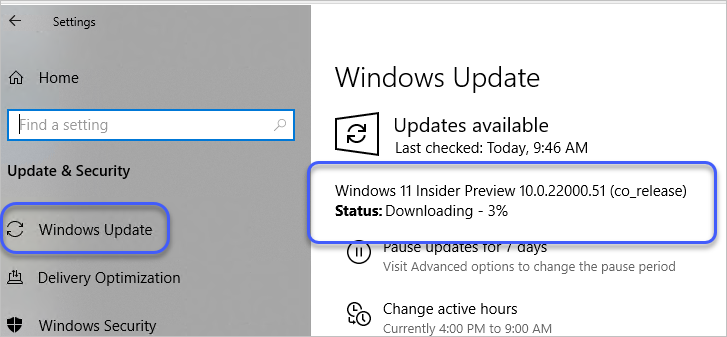
Connecting to the internet is essential for downloading updates, activating Windows, and accessing online services. A stable internet connection ensures smooth operation and access to the latest security patches and features. Initiating Windows updates after installation ensures optimal performance and protection against vulnerabilities.
Activating Windows 11
Activating Windows 11 is a mandatory step to utilize all its features and receive technical support. This process validates the license and confirms the legal use of the operating system. Failure to activate Windows 11 can result in limited functionality.
Installing Drivers for Connected Hardware
The installation of drivers for connected hardware is necessary for proper device functionality. Drivers provide the communication bridge between the operating system and hardware components, allowing them to work seamlessly. Ensure that all necessary drivers are installed to prevent issues with peripherals.
- Driver installation ensures that peripherals like printers, scanners, and external hard drives operate correctly. Problems with these components can arise if drivers are not installed correctly or are out-of-date. Always download drivers from the manufacturer’s official website to avoid compatibility issues.
- Identifying the correct drivers is critical. Each hardware device has specific driver requirements. Downloading and installing the wrong drivers can lead to malfunctions and instability.
- Installing drivers using the Device Manager is a common method. Device Manager allows you to check for outdated drivers, download the necessary files, and initiate the installation process.
Verifying Post-Installation Tasks
This checklist ensures all essential post-installation tasks are completed. Thorough verification is crucial to a smooth user experience.
| Task | Verification Method |
|---|---|
| Account Creation | Verify the existence of the user account and its associated settings. |
| Internet Connection | Check network connectivity using a web browser or other network tools. |
| Windows Updates | Verify that updates are installed and that the system is running the latest version. |
| Windows Activation | Check the activation status of Windows. |
| Driver Installation | Inspect the Device Manager to confirm all hardware devices have functioning drivers. |
Troubleshooting Common Issues
![Access_the_batocera_via_ssh [Batocera.linux - Wiki]](https://wayzen.web.id/wp-content/uploads/2025/09/windows_install_avrispmkii_driver_31-3.png "Access_the_batocera_via_ssh [Batocera.linux - Wiki]")
Installing Windows 11 can sometimes encounter unexpected hurdles. This section details common problems encountered during the installation process, along with actionable solutions to help you overcome them. A thorough understanding of these potential issues and their resolutions can significantly streamline the installation procedure and ensure a smooth transition to your new operating system.
Identifying and Resolving Installation Hangs
Installation hangs are a frequent issue during the Windows 11 setup process. Several factors can contribute to this, including insufficient system resources, hardware incompatibilities, or corrupted installation media. A methodical approach to diagnosing and resolving these issues is essential.
- Verify System Requirements: Ensure your PC meets the minimum hardware requirements for Windows 11. Insufficient RAM, a slow processor, or inadequate storage space can lead to installation stalls. If your system falls short, consider upgrading components.
- Check for Disk Errors: Run a disk check to identify and correct any errors on the hard drive or SSD where you are installing Windows. This can often resolve installation hangs caused by underlying disk issues. Utilize the built-in command-line tools or disk management utilities to perform the check.
- Restart the Installation: A simple restart of the installation process can sometimes resolve temporary glitches. If the issue persists, proceed to the next steps.
- Review Installation Media: Verify that the installation media (USB drive or ISO file) is properly created and free from errors. Problems with the installation media itself can manifest as installation hangs. Creating the installation media again using a reliable tool can resolve this issue.
Handling Incompatible Hardware
Windows 11 has specific hardware compatibility requirements. Attempting to install Windows 11 on a system with incompatible hardware can lead to installation errors or system instability. Understanding these requirements is crucial to a successful installation.
- Identify the Problem: Carefully review the Windows 11 system requirements and compare them with your PC’s specifications. Pay close attention to processor architecture, storage space, and RAM capacity.
- Update Drivers: Ensure that all hardware drivers are up-to-date. Outdated or corrupted drivers can lead to conflicts during installation. Download and install the latest drivers from the manufacturer’s website for all connected hardware components.
- Consider Hardware Alternatives: If incompatibility persists, consider upgrading to compatible hardware or using a different computer. This step ensures optimal system performance and stability.
Troubleshooting Error Messages
Encountering error messages during the Windows 11 installation process is common. These messages often provide clues to the underlying cause of the problem. Understanding the message and applying appropriate troubleshooting steps can lead to a resolution.
- Analyze the Error Message: Carefully review the error message displayed during the installation process. Note any specific error codes or descriptive text that can aid in identifying the source of the problem.
- Consult Microsoft Support: Microsoft’s support resources offer comprehensive information on troubleshooting installation errors. Search the Microsoft website for detailed information related to the specific error encountered.
- Check for Software Conflicts: Verify that no conflicting software is installed on the system. These conflicts can lead to errors during the installation process. Temporarily disable or uninstall any potentially problematic software.
Recovering from Installation Failures
Installation failures can be frustrating but are often resolvable. A systematic approach to recovery is essential to minimize data loss and ensure a smooth transition.
- Check the Installation Logs: Examine the installation logs for details on the failure. These logs may contain crucial information about the cause of the error.
- Reattempt Installation: If the failure is due to a temporary glitch, try reinstalling Windows 11 using the same installation media. Ensure the installation process completes successfully.
- Consider System Restore: If possible, perform a system restore to a previous stable state. This can be an effective method to recover from installation failures, although data loss might occur.
Example Troubleshooting Table
| Problem | Possible Cause | Solution |
|---|---|---|
| Installation hangs | Insufficient system resources, corrupted installation media, or hardware conflicts | Verify system requirements, check disk errors, update drivers, restart the installation, and review the installation media. |
| Error message: “0x80070002” | Disk space issues, hardware problems, or corrupted installation files | Ensure sufficient disk space, update drivers, check for disk errors, and recreate the installation media. |
Alternatives and Comparisons
Choosing the right method for installing Windows 11 on a new PC depends on several factors, including your existing operating system, the need for a clean slate, and the amount of data you want to migrate. This section explores various installation methods, highlighting their advantages and disadvantages. Understanding these differences empowers you to select the approach that best suits your specific needs.Different methods offer varying degrees of complexity and impact on your data.
Carefully consider your preferences and requirements before proceeding.
Methods for Installing Windows 11
Various methods exist for installing Windows 11. A clean installation provides a fresh start, while an upgrade preserves existing data and applications, potentially with some limitations. Data migration allows transfer of files and applications from an older OS.
Installation Media Types
Selecting the right installation media is crucial for a successful installation. Different media types offer varying levels of convenience and flexibility.
- USB Flash Drives: USB flash drives are a popular choice for their portability and ease of use. They allow for direct installation, eliminating the need for a physical disc. However, the size of the drive limits the size of the Windows 11 installation files, requiring careful consideration of the required space.
- DVD/CD: While less common now, DVD/CD media offers a more traditional installation method. However, its capacity is significantly smaller than USB drives, making it suitable only for smaller installations.
- ISO Images: ISO images are digital copies of installation files. They can be burned to DVD/CD or written to a USB drive, offering flexibility. This method typically involves additional steps but ensures that the installation files are exact copies of the original.
Clean Installations vs. Upgrades
Understanding the differences between a clean installation and an upgrade is vital for a smooth transition. Each approach has distinct implications for your existing data and applications.
- Clean Installation: A clean installation erases all data and applications from the hard drive, creating a fresh environment for Windows 11. This method provides a stable platform free from potential conflicts, but requires careful data backup prior to installation.
- Upgrade Installation: An upgrade installation attempts to preserve existing data and applications while installing Windows 11. This method is generally faster, but it can sometimes lead to compatibility issues or data loss if applications are not fully compatible with Windows 11. It also depends on the compatibility of the older OS.
Data Migration from Older OS
Migrating data from an older operating system to Windows 11 is an important consideration for users transferring their files and applications. Several methods exist for accomplishing this, ranging from manual file copying to specialized third-party tools.
- Manual File Copying: Manually copying files and folders from the older OS to the new Windows 11 installation is a straightforward approach, but time-consuming for extensive data sets. This method is best for smaller datasets and allows for more control over the data transfer process.
- Third-Party Migration Tools: Third-party tools are designed to automate the data migration process. These tools often offer greater efficiency and can handle complex configurations. However, they can be costly and may require a degree of technical expertise.
Comparison Table
The following table summarizes the key differences between clean installation, upgrade installation, and data migration methods.
| Method | Data Preservation | Compatibility | Speed | Complexity |
|---|---|---|---|---|
| Clean Installation | No | High | Moderate | Low |
| Upgrade Installation | Yes (potentially) | Moderate | High | Moderate |
| Data Migration | Yes | Depends on method | Depends on method | Moderate to High |
Ultimate Conclusion
In conclusion, installing Windows 11 on a new PC is a process that can be tackled with confidence using this comprehensive guide. We’ve covered essential prerequisites, media preparation, the installation process itself, post-installation configuration, and troubleshooting potential issues. By following the detailed steps and recommendations, you’ll be well-equipped to navigate the installation process and ensure a smooth transition to your new Windows 11 system.
Remember to thoroughly check compatibility and follow the provided steps for a successful outcome.