Maintaining optimal temperatures within your PC case is crucial for its longevity and performance. This guide delves into the intricate world of PC airflow, offering a detailed understanding of the principles, design considerations, and troubleshooting strategies to enhance your system’s cooling. From fundamental concepts to advanced techniques, we’ll explore the critical factors impacting airflow and equip you with the knowledge to create a perfectly ventilated PC case.
Understanding airflow principles, fan selection, cable management, and monitoring are key elements for success. The guide covers various aspects from different case designs to advanced techniques, including external cooling solutions. This comprehensive approach ensures that you gain a holistic perspective on improving your PC’s airflow.
Understanding PC Case Airflow

Proper airflow within a PC case is crucial for maintaining optimal temperatures and preventing overheating. A well-designed airflow system ensures components receive sufficient cooling, prolonging their lifespan and preventing system instability. Poor airflow, on the other hand, can lead to performance degradation, component failure, and even system crashes.Effective airflow management relies on understanding the fundamental principles of air pressure and flow within the case.
Fans, strategically positioned, play a pivotal role in creating a consistent and directed flow of cool air to dissipate heat generated by components. By addressing common mistakes and implementing appropriate airflow paths, users can significantly improve the thermal performance of their systems.
Principles of Airflow
Airflow in a PC case operates on the principles of air pressure and flow. Air naturally moves from areas of high pressure to areas of low pressure. This pressure difference is often created by fans, which either push air (outflow) or pull air (inflow) into or out of the case. The direction of airflow is crucial for optimal cooling, ensuring heat generated by components is efficiently expelled.
Properly placed fans create a consistent flow of cool air, directing it towards the components needing cooling, while simultaneously pushing out hot air.
Role of Fans
Fans are integral to creating and maintaining airflow within a PC case. Their primary function is to either push air (outflow) or pull air (inflow) through the case, creating the necessary pressure differentials for effective heat dissipation. The placement and configuration of fans significantly impact the overall airflow pattern. For example, a fan positioned to push air directly at a heat-generating component like a graphics card or CPU will effectively cool that component.
Importance of Airflow
Maintaining optimal airflow is essential for preventing overheating. Overheating can lead to reduced performance, component damage, and even system instability. Components like CPUs and GPUs generate substantial heat during operation. If not adequately cooled, these components can reach temperatures that exceed their operating limits, resulting in performance degradation or outright failure.
Common Mistakes in Airflow Design
Common errors in PC case airflow design include insufficient fan placement, incorrect fan orientation, and poor airflow paths. For example, placing fans in a manner that creates turbulence or recirculation of hot air can hinder the cooling process. Furthermore, insufficient fan speed can lead to inadequate cooling, especially under heavy loads. An understanding of the proper placement, direction, and speed of fans is crucial to effective airflow.
Different Airflow Paths and Configurations
Various airflow paths and configurations can be implemented in a PC case to optimize cooling. A common configuration involves using intake fans at the front of the case to draw cool air in, and exhaust fans at the rear to expel hot air. Furthermore, strategically placed fans on the top or sides can also be used to facilitate airflow and direct air towards components needing cooling.
Experimentation and observation are key to determining the optimal airflow configuration for individual PC cases and components. Using multiple fans with varying speeds allows for more complex airflow patterns and tailored cooling solutions.
Case Design and Component Placement
The physical design of the PC case plays a significant role in airflow. Components within the case should be positioned in a way that facilitates airflow, minimizing obstacles and ensuring direct cooling. For example, placing heat-generating components closer to exhaust fans will enhance cooling efficiency.
Example of a Well-Designed Airflow Configuration
A well-designed configuration might involve intake fans at the front of the case pulling in cool air, which then passes over heat-generating components. Hot air is then expelled by exhaust fans located at the rear. This setup, combined with strategically positioned fans on the top or sides of the case, creates a consistent and directed airflow, preventing stagnation and ensuring optimal cooling.
Case Design and Layout
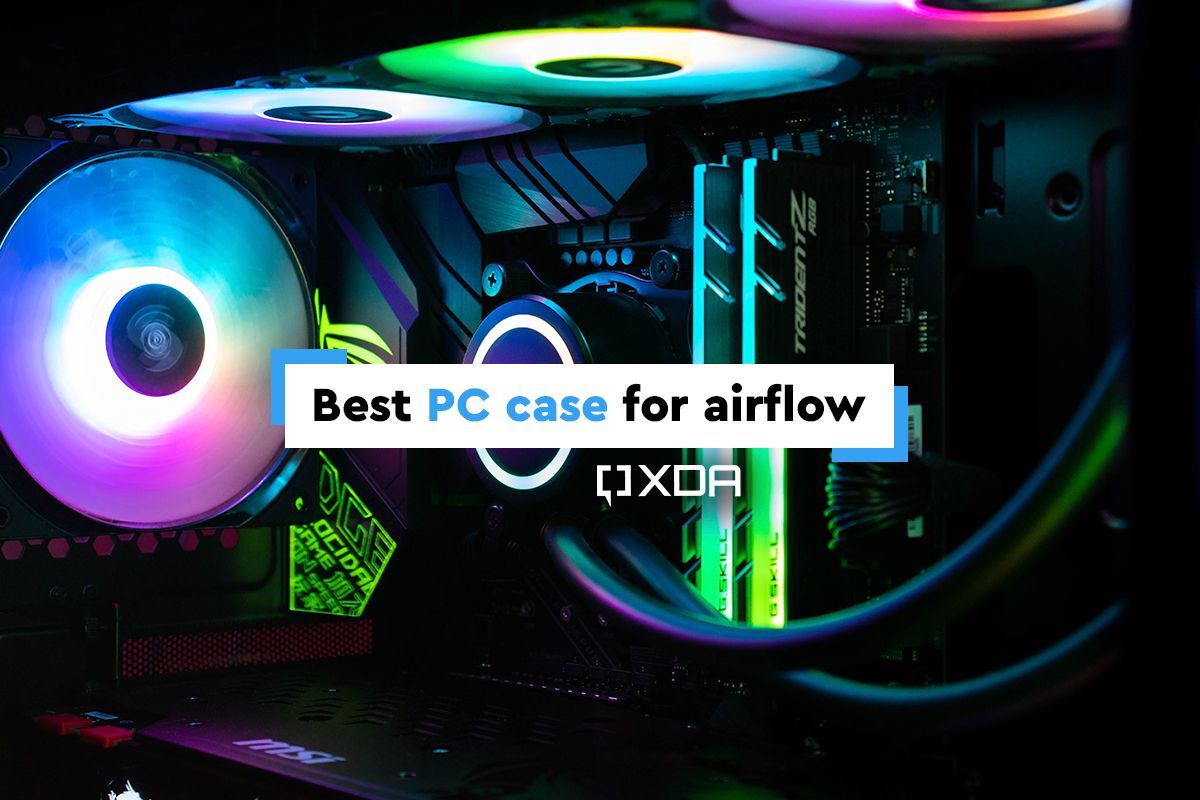
PC case design significantly impacts airflow, influencing the overall thermal performance of your system. A well-designed case promotes efficient heat dissipation, while a poorly designed one can lead to overheating, reducing component lifespan and performance. Understanding the interplay between case layout, component placement, and material selection is crucial for achieving optimal cooling.Careful consideration of case design elements such as panel positioning, fan placement, and the presence of open spaces directly affects the path and velocity of airflow.
A case’s structural design influences how air moves through the system, either aiding or hindering cooling efforts. This section explores these key aspects and provides examples of effective and ineffective case designs to help you make informed choices.
Impact of Case Design on Airflow
Case design profoundly influences airflow. Open spaces within the case allow for unimpeded airflow, while obstructions restrict air circulation, leading to overheating. Proper panel positioning enables targeted airflow, directing cool air towards components and exhausting warm air effectively. Fan placement is critical; strategically placed fans can improve air circulation and targeted cooling.
Examples of Well-Designed and Poorly-Designed Cases
A well-designed case features ample open spaces for air circulation, strategically positioned intake and exhaust fans, and panels that facilitate airflow without unnecessary restrictions. Consider a case with a front panel designed for maximum intake, and a rear panel specifically for exhaust. Conversely, a poorly designed case might have limited open spaces, obstructing airflow paths, or have fans positioned in a manner that doesn’t promote effective cooling.
For instance, placing intake fans near the exhaust fans creates a stagnant air zone. A case with excessive internal baffles or obstructions severely restricts airflow.
Case Design Variations and Airflow Potential
Different case designs, such as mid-tower, full-tower, and mini-ITX, cater to different needs and offer varying airflow potential. Mid-tower cases provide a good balance between space and airflow, suitable for most configurations. Full-tower cases offer more space for extensive cooling solutions, ideal for high-end systems or those with multiple high-heat components. Mini-ITX cases, designed for compact builds, often have more restricted airflow paths.
Modifying a Pre-built Case for Improved Airflow
Modifying a pre-built case to enhance airflow involves strategically removing internal components, like unnecessary internal baffles, or adding fans. If possible, installing additional fans, especially strategically positioned intake fans, can significantly improve airflow. Removing unnecessary components and adding appropriate airflow management tools can significantly improve the cooling capabilities.
PC Case Material and Thermal Performance
Different materials used in PC cases exhibit varying thermal performance. A table summarizing the thermal conductivity and potential benefits of various materials can aid in the decision-making process.
| Material | Thermal Conductivity (W/mK) | Pros | Cons |
|---|---|---|---|
| Steel | 50-80 | Relatively inexpensive, robust | Can conduct heat, potentially impacting airflow |
| Aluminum | 200-230 | Excellent heat dissipation | More expensive than steel |
| Acrylic/Glass | Low | Aesthetically pleasing, allows for visual inspection of components | Poor thermal conductivity, may hinder airflow |
| Plastic | Low | Relatively inexpensive | Poor thermal conductivity, may hinder airflow |
Fan Selection and Placement
Choosing the right fans is crucial for achieving optimal airflow within your PC case. Proper fan selection and strategic placement directly impact cooling efficiency, noise levels, and overall system performance. Careful consideration of factors like airflow volume, pressure, and noise levels is essential for achieving a balance between cooling and quiet operation.
Factors to Consider When Selecting Fans
Selecting fans involves evaluating various parameters. Cubic Feet per Minute (CFM) quantifies the volume of air moved by the fan, while static pressure indicates the fan’s ability to push air against resistance. Noise levels are also critical, as excessive noise can be disruptive. Mounting options must be compatible with your specific case.
- CFM (Cubic Feet per Minute): CFM measures the volume of air a fan can move in a minute. A higher CFM generally indicates better cooling capacity, but it’s not the sole determinant. Consider the size of your case and the heat generated by your components when selecting a CFM rating. A large case with high-end components will require fans with higher CFM ratings than a smaller case with lower power consumption.
For example, a high-end gaming PC will generate more heat, thus requiring fans with a higher CFM to adequately cool it.
- Static Pressure: Static pressure measures the fan’s ability to push air against obstacles like filters or other components. A higher static pressure is beneficial for pushing air through tight spaces or when overcoming resistance. For example, if you have a dense component configuration in your case, a fan with higher static pressure will help push air through these components, enhancing cooling efficiency.
- Noise Levels: Noise levels are subjective and vary depending on individual preferences. Fans with lower decibel ratings offer a quieter operation. This is especially important for users seeking a quieter environment. For instance, in a home office or bedroom, a lower noise level is preferred over a louder fan.
- Mounting Options: Ensure that the fan’s mounting system is compatible with your PC case. Different case manufacturers use various mounting systems. Check the case’s documentation or online resources for compatible fan models. This is essential to avoid any incompatibility issues.
Calculating Optimal Fan Count
Determining the appropriate number of fans for your build requires careful calculation. Consider the volume of air required to dissipate heat, the resistance to airflow, and the case’s internal design. A simple calculation isn’t always sufficient.
A general rule of thumb is to have a balance between CFM and the size of the case. For example, a large case with powerful components might need 4-6 fans, whereas a smaller case might require 2-3 fans, ensuring adequate airflow without excessive noise.
Fan Mounting Positions
Optimizing fan placement is vital for maximizing airflow. Front intake fans pull cool air into the case, while rear exhaust fans expel hot air. Top and side fans can assist with heat dissipation and prevent hot spots.
- Front Intake: Positioning fans at the front of the case as intake fans is essential to draw cool air into the PC. This ensures optimal cooling by introducing fresh air to the components.
- Rear Exhaust: Exhaust fans positioned at the rear of the case are critical for removing hot air from the PC. This maintains a stable thermal environment by removing the heat generated by components.
- Top and Side Fans: These fans can aid in cooling and preventing hot spots. Their placement should be strategic to improve overall airflow.
Fan Curves and Performance
Fan curves demonstrate the relationship between fan speed and airflow. Understanding these curves is essential for achieving optimal performance and noise levels. A fan’s curve indicates the CFM and static pressure output at different speeds.
- Fan Curves: A fan’s curve provides a graphical representation of the relationship between speed and airflow. By analyzing these curves, you can determine the optimal fan speed for specific needs, balancing performance and noise.
Example Fan Specifications
The following table provides a sample of various fan models and their key specifications:
| Fan Model | CFM | Static Pressure (mmH2O) | Noise Level (dB) |
|---|---|---|---|
| Fan A | 50 | 2.5 | 25 |
| Fan B | 65 | 3.0 | 30 |
| Fan C | 80 | 3.5 | 35 |
Cable Management and Radiator Integration
Proper cable management and radiator integration are crucial for maximizing airflow within a PC case. Unorganized cables can impede airflow, leading to overheating components and reduced system performance. Conversely, strategic cable routing and radiator placement can significantly improve cooling efficiency. This section will detail best practices for achieving this.
Impact of Cable Management on Airflow
Cable management significantly influences airflow. Tangled cables obstruct the path of airflow, creating turbulence and reducing the effectiveness of fans. This can lead to localized overheating in areas where airflow is restricted, impacting component lifespan and potentially causing system instability. Minimizing obstructions is key to maintaining optimal temperatures.
Best Practices for Minimizing Airflow Obstructions
To minimize airflow obstructions, several best practices are essential. Employing cable ties, Velcro straps, or cable conduits can neatly organize cables and prevent them from blocking airflow pathways. Using zip ties strategically is crucial, ensuring cables are securely held without kinking or causing unnecessary pressure points that can restrict airflow. Additionally, routing cables along the least obstructed paths, typically behind components, is vital.
Consider using cable combs or cable clips for more complex configurations.
Methods for Managing Cables in a PC Case
Several methods effectively manage cables within a PC case. Using cable ties, Velcro straps, and cable conduits are common approaches for neatly bundling and securing cables. These methods not only improve airflow but also enhance the aesthetic appeal of the PC build. A key consideration is the selection of appropriate cable management solutions to ensure that cables are adequately secured and prevented from moving, potentially obstructing airflow.
Cable combs, specifically designed to hold cables in place, are a useful addition to organize cables from multiple components.
Radiator Integration into PC Case Airflow
Effective radiator integration is paramount to maximizing PC case airflow. Strategically positioning radiators in the airflow path, often near the front or top of the case, allows cool air to directly pass over the radiator’s fins. Radiators should be placed in areas with consistent airflow from the fans to ensure optimal cooling. Understanding the airflow patterns within the case is critical to optimizing the radiator’s placement.
Optimal Cable Routing and Fan Placement around a Radiator
A well-designed diagram can illustrate optimal cable routing and fan placement around a radiator. The diagram should show cables routed behind components, avoiding the radiator’s vicinity, and showcasing how fans are positioned to maximize airflow over the radiator’s fins. An example diagram below shows a configuration where cables are neatly routed behind components, allowing for unobstructed airflow around the radiator.

Note
* The image (optimal_routing.png) would visually depict optimal cable routing and fan placement around a radiator. Cables are routed behind components to avoid obstruction. Fans are strategically positioned to maximize airflow over the radiator’s fins.
Comparison of Cable Management Solutions
The table below contrasts various cable management solutions for PC cases, highlighting their advantages and disadvantages.
| Cable Management Solution | Advantages | Disadvantages |
|---|---|---|
| Cable Ties | Affordable, readily available, versatile | Can be unsightly, may require multiple ties |
| Velcro Straps | Secure, allows for cable movement, aesthetic appeal | Can be more expensive, may require specialized tools |
| Cable Conduits | Highly organized, good airflow, aesthetic appeal | More expensive, potentially bulky |
| Cable Combs | Organized cable management, excellent for complex configurations | Limited usability in tight spaces |
Monitoring and Optimization
Thorough monitoring and optimization are crucial for achieving optimal PC performance. Understanding how your components behave under different loads allows you to fine-tune airflow and cooling strategies for maximum efficiency and stability. This section will delve into techniques for monitoring temperatures, identifying bottlenecks, and optimizing fan curves for improved airflow.Effective cooling management is not just about achieving low temperatures; it’s about achieving low temperatures consistently across varying workloads.
This means understanding how your system performs under light, medium, and heavy loads, enabling proactive adjustments to maintain stability and performance.
Monitoring PC Temperatures
Accurate temperature monitoring is fundamental to effective cooling management. This allows you to identify potential issues and make adjustments to maintain optimal performance and prevent component failure. Various software tools provide real-time temperature readings for critical components, including the CPU, GPU, and hard drives.
- Hardware Monitoring Tools: Software applications like HWMonitor, Core Temp, and MSI Afterburner provide detailed temperature readings for multiple components. These tools offer real-time data visualization, enabling you to track temperature fluctuations as your system operates under different workloads.
- Operating System Tools: Many operating systems offer basic temperature monitoring tools. Windows Task Manager, for instance, displays CPU temperature. While these tools are helpful for basic monitoring, dedicated third-party applications provide more comprehensive data.
Identifying Airflow Bottlenecks
Identifying airflow bottlenecks is crucial for optimizing cooling performance. These bottlenecks can be caused by obstructions, poor case design, or inadequate fan placement. Addressing these bottlenecks improves overall cooling efficiency and prevents thermal throttling.
- Visual Inspection: Carefully inspect your PC case for obstructions. Ensure adequate clearance between components and fans. Poorly placed components or cables can restrict airflow. Remove any dust buildup that may hinder airflow and ventilation.
- Temperature Profiling: Run your system under various workloads. If specific components consistently run hotter than others, it could indicate a localized airflow problem. Compare temperature readings across different locations in the case to pinpoint the bottleneck.
- Case Design Considerations: Assess your case’s design. Some cases are better suited for specific cooling configurations. Poor case design can restrict airflow, creating a bottleneck that necessitates adjustments to fan placement or case modification.
Optimizing Fan Curves
Fan curves allow you to adjust fan speeds based on temperature. This fine-tuning enhances cooling efficiency by reducing unnecessary noise while maintaining optimal temperatures.
- Software Control: Many fan control software tools (like the ones mentioned in the previous section) offer fan curve adjustments. This enables you to set fan speeds to ramp up automatically as temperatures increase. This approach ensures optimal cooling while minimizing noise when the system is idle.
- Manual Adjustment: If your motherboard or case doesn’t have software control, you can manually adjust fan speeds through the BIOS or fan controllers. Adjustments should be made in increments to find the balance between cooling and noise levels.
Monitoring During Workload Scenarios
Monitoring temperatures during various workloads is essential for comprehensive cooling analysis. This allows you to tailor cooling strategies to meet the specific demands of each task.
- Gaming: Gaming applications often demand high CPU and GPU usage. Monitor temperatures during intensive gaming sessions to ensure components remain within safe operating ranges.
- Video Editing: Tasks like video editing can heavily load the CPU and GPU, and these situations will generate higher temperatures. Track temperatures to ensure consistent cooling during these periods.
- Rendering: Rendering tasks can stress both the CPU and GPU significantly. Monitoring temperatures during rendering helps you determine if adjustments to cooling are necessary.
Example Monitoring Procedure
A comprehensive monitoring procedure involves the following steps:
- Baseline Measurement: Run the system under a light workload (e.g., web browsing) to establish a baseline temperature for each component. Record these readings.
- Stress Testing: Perform a stress test (e.g., using FurMark for the GPU or Prime95 for the CPU) to simulate heavy loads. Monitor temperatures throughout the stress test.
- Data Analysis: Analyze the temperature data gathered during the baseline and stress test phases. Identify any significant temperature spikes. Determine if any component is reaching unsafe operating temperatures.
- Optimization: Based on the analysis, adjust fan curves, airflow configurations, or other cooling strategies to optimize performance and stability under various workloads. Repeat the stress test to evaluate the effectiveness of your changes.
Advanced Airflow Techniques

Optimizing airflow within a PC case extends beyond basic fan placement. Advanced techniques leverage pressure differentials and external cooling solutions to maximize cooling performance and system stability. Careful consideration of these strategies can significantly impact thermal management, leading to improved component lifespan and overall system performance.
Intake and Exhaust Fan Strategies
Strategic placement of intake and exhaust fans creates pressure differentials, effectively directing airflow through the case. Intake fans pull cool air into the case, while exhaust fans expel hot air. The effectiveness of this method depends heavily on fan placement and the balance of air pressure. Proper fan placement is crucial for effective cooling. Incorrect positioning can result in air stagnation or inefficient airflow patterns, hindering the cooling process.
- Intake Fans: Positioning intake fans strategically at the front of the case draws cool air inward, ensuring a constant supply of fresh air to critical components.
- Exhaust Fans: Exhaust fans located at the rear or top of the case expel the heated air, creating a consistent flow and preventing the build-up of hot air within the system.
- Pressure Differential: Creating a pressure differential is key to optimal airflow. The difference in air pressure between intake and exhaust fans drives the airflow through the case, maximizing the cooling effect. A balanced pressure gradient is essential for efficient heat dissipation. For instance, a higher number of intake fans than exhaust fans can cause a lower pressure differential and less effective airflow.
External Cooling Solutions
External cooling solutions, such as external radiator systems, augment internal airflow by significantly increasing the cooling capacity. These systems typically involve external radiators that are connected to the CPU or GPU, drawing heat away from these components and dissipating it into the surrounding environment.
- Radiator Integration: External radiator systems require careful integration with the case’s existing airflow. Proper fan placement around the radiator is essential for efficient heat dissipation and avoiding airflow obstructions.
- External Radiator Benefits: External radiator systems offer increased cooling capacity compared to integrated solutions. This is particularly beneficial for high-end systems or those with components generating significant heat, such as high-performance GPUs.
- Compatibility and Design: System compatibility with the case’s design and mounting points is crucial. Carefully selecting a radiator that aligns with the case’s dimensions and available space is essential for a seamless integration.
Case Modifications for Enhanced Airflow
Modifying the case can further improve airflow by enhancing airflow paths and reducing obstructions. Strategic additions, such as mesh panels, improve airflow, preventing airflow stagnation.
- Mesh Panels: Installing mesh panels on the front or side panels of the case allows for improved airflow by reducing the obstruction of air through the case. Mesh panels allow for unrestricted air movement and increase the cooling capacity of the case. This is especially important for systems with high component heat generation.
- Panel Removal: Removing panels, if possible, creates more space for air to flow. However, careful consideration is needed to ensure sufficient support for the components and prevent potential damage. Removing panels, if appropriate, can significantly enhance airflow, potentially leading to improved thermal performance.
Comparison of Airflow Enhancement Techniques
Different airflow enhancement techniques have varying degrees of effectiveness. The best approach depends on the specific needs and characteristics of the PC system. Factors like component heat output and case design play a significant role in determining the optimal approach.
| Technique | Pros | Cons |
|---|---|---|
| Intake/Exhaust Fans | Effective for basic airflow, relatively inexpensive | Can be noisy, requires careful placement |
| External Radiators | High cooling capacity, suitable for high-end systems | More complex installation, higher cost |
| Case Modifications (e.g., mesh panels) | Simple to implement, can improve airflow | May not be suitable for all cases, may require specific components |
Troubleshooting Common Issues

Effective PC airflow is crucial for optimal performance and longevity. Troubleshooting common problems, such as inadequate cooling or excessive noise, allows for swift and precise resolution. This section details methods to identify and rectify these issues, focusing on specific component problems and temperature analysis.Identifying and resolving airflow problems requires a methodical approach. Analyzing temperature readings, combined with visual inspection of component placement and cable management, can pinpoint the source of the issue.
This process allows for targeted solutions, ultimately enhancing cooling efficiency and system stability.
Identifying Airflow Problems
Poor airflow and excessive noise are common issues in PC builds. Recognizing the symptoms allows for targeted troubleshooting. Poor airflow often manifests as high component temperatures, while excessive noise indicates potential fan issues or obstructions. Both situations can be indicative of a broader problem in the cooling system.
Troubleshooting Poor Airflow
Several factors can contribute to inadequate airflow. A common culprit is insufficient fan placement or improper fan orientation, which can impede air circulation within the case. Another contributing factor is inadequate exhaust, which results in reduced airflow and stagnant air. Finally, obstructed airflow paths due to improperly managed cables or components can hinder cooling.
Troubleshooting Excessive Noise
Excessive noise from the PC’s cooling system often originates from malfunctioning fans. Loose or failing bearings can cause unusual noise patterns. Additionally, improper fan curve settings or obstructed fan blades can contribute to excessive noise levels. Identifying the source of the noise is crucial to addressing the issue effectively.
Troubleshooting CPU Cooler Issues
CPU coolers are critical for maintaining optimal CPU temperatures. Poor thermal paste application, inadequate cooler mounting, or a faulty cooler itself can result in poor performance. Analyzing CPU temperatures, compared to expected values, can help diagnose the root cause. If the CPU temperature remains high despite adequate airflow, the issue is likely with the cooler itself. Ensuring proper thermal paste application and a secure cooler mounting are vital.
Diagnosing Issues Through Temperature Readings
Temperature monitoring is an essential diagnostic tool. Tools such as dedicated software or hardware monitoring utilities allow for real-time temperature tracking. High temperatures on specific components, such as the CPU or GPU, indicate inadequate cooling. This data allows for targeted troubleshooting and optimization of the cooling system. By comparing temperature readings with expected values, the user can determine if the airflow is insufficient or if there are problems with individual components.
Practical Steps for Fixing Airflow Problems
Addressing airflow problems requires a multi-faceted approach. First, carefully assess the current setup to identify potential obstructions or inadequate fan placement. Second, ensure all components are properly mounted and connected. Third, evaluate cable management, ensuring cables are not obstructing airflow paths. Fourth, check fan speeds and orientations.
Finally, consider optimizing the airflow within the case through the use of fans, filters, and case modifications, as appropriate. By following these steps, users can effectively address airflow problems in their PC cases.
Final Summary
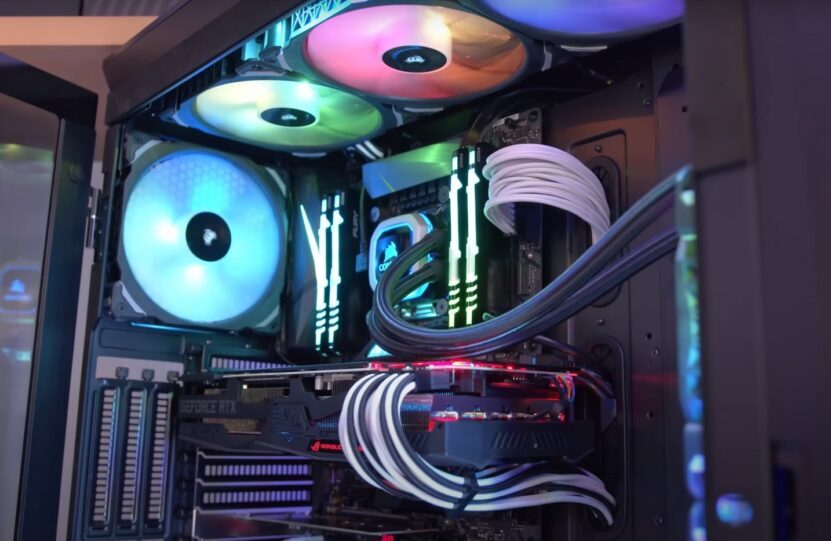
In conclusion, optimizing airflow in your PC case is a multifaceted process that requires a deep understanding of the interplay between various components and design choices. By meticulously considering factors such as case design, fan selection, cable management, and monitoring, you can effectively combat overheating and significantly enhance your PC’s performance and longevity. This comprehensive guide provides a practical roadmap to achieve optimal airflow, ensuring a cool and efficient computing experience.