Migrating your operating system to a new Solid State Drive (SSD) can significantly enhance your computer’s performance. This comprehensive guide details the process of cloning your operating system, offering a faster and safer alternative to reinstalling from scratch. We’ll explore the advantages of cloning, compare it to reinstallation, and provide step-by-step instructions for a seamless transition.
From selecting the right cloning software to verifying the cloned system’s functionality, this guide covers every aspect of the process. We’ll also delve into troubleshooting common issues and advanced techniques, ensuring a smooth and successful migration.
Introduction to Cloning an Operating System
Operating system cloning is a process that creates an exact replica of an existing operating system and all its associated data, including applications, settings, and user profiles, onto a new storage device, such as a Solid State Drive (SSD). This process is valuable for upgrading hardware, transferring data to a new machine, or creating a backup system.Cloning offers a significant advantage over reinstalling the operating system from scratch, as it preserves all user data and settings.
This method minimizes data loss risk and significantly shortens the time required to set up a new system. Cloning is particularly useful for users who want to upgrade to a faster or more powerful SSD, transfer their operating system to a new computer, or create a complete backup of their system. It is also beneficial in situations requiring rapid system restoration, such as after a hardware failure or accidental data deletion.
Advantages of Cloning over Reinstalling
Cloning preserves user data and applications, avoiding the need to reinstall software and reconfigure settings. This process significantly reduces the time required to set up a new system compared to reinstalling from scratch. Furthermore, cloning minimizes the risk of data loss, unlike a fresh installation, which can introduce errors if not performed meticulously.
Scenarios Where Cloning is Useful
Cloning is an invaluable tool in numerous situations. Upgrading to a faster SSD is a prime example, as cloning allows users to maintain their existing system while enjoying the benefits of enhanced performance. Transferring an operating system to a new computer is another practical application, ensuring a seamless transition without losing any personal files or configurations. Cloning is also instrumental in creating a backup system, safeguarding against data loss due to system crashes or hardware failures.
Finally, recovering from system failures or accidental data deletion is significantly faster and easier using a cloned system image.
Comparison of Cloning and Reinstalling
The table below highlights the key differences between cloning and reinstalling an operating system, focusing on speed, data loss risk, and complexity.
| Feature | Cloning | Reinstalling |
|---|---|---|
| Speed | Significantly faster; typically takes minutes to hours, depending on the size of the data and the speed of the transfer | Slower; often takes hours or even days, depending on the software and applications involved. |
| Data Loss Risk | Very low; minimal risk if the cloning process is performed correctly. | Higher; there’s a risk of data loss during the installation process if not performed meticulously. |
| Complexity | Generally lower; cloning tools often provide user-friendly interfaces. | Higher; reinstalling requires careful attention to details and potentially requires specialized knowledge. |
Choosing the Right Cloning Software
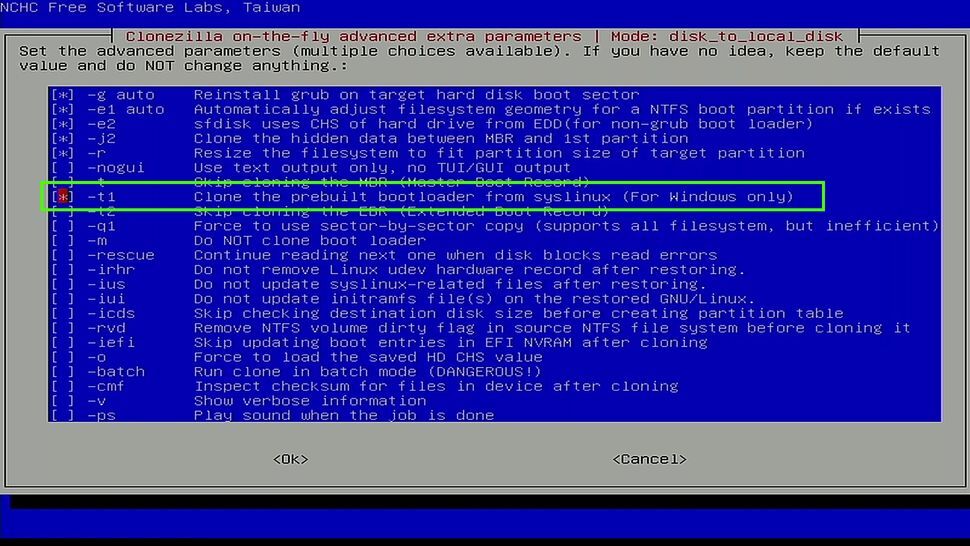
Selecting the appropriate cloning software is crucial for a successful operating system migration. Carefully evaluating the available options based on your specific needs and technical expertise is essential to ensure a smooth and error-free process. Different software tools offer varying levels of functionality, ease of use, and performance, making informed decision-making critical.Choosing the right cloning software depends on several factors, including the complexity of the cloning task, the size of the data being cloned, and the user’s familiarity with the software.
A tool that’s straightforward for a novice user might be less powerful for advanced tasks, while a more powerful tool might be overwhelming for a less experienced user. Understanding the capabilities and limitations of each option is vital for making the best choice.
Software Options for Cloning
Various software tools are available for cloning operating systems, ranging from free open-source solutions to paid professional-grade applications. A well-researched choice will save you time and effort in the long run.
- Macrium Reflect: A widely recognized and reliable cloning software, Macrium Reflect offers a comprehensive suite of features, including the ability to clone entire hard drives, create bootable rescue disks, and manage disk images. Its user interface is generally considered intuitive, making it suitable for users with varying levels of technical experience. Macrium Reflect supports a broad range of hard drive formats and operating systems, ensuring compatibility with a variety of configurations.
- EaseUS Todo Backup: This software provides a robust cloning solution with comprehensive backup and recovery capabilities. It simplifies the cloning process with its intuitive graphical interface. EaseUS Todo Backup also offers advanced features like disk imaging and data recovery, providing a wider range of support for data management.
- Clonezilla: A free and open-source cloning tool, Clonezilla is renowned for its flexibility and ability to handle complex cloning tasks. Its command-line interface might require more technical expertise, but it allows for greater customization and control over the cloning process. Clonezilla is often favored by advanced users or system administrators due to its extensive configuration options.
- Windows built-in tools: Windows operating systems provide built-in tools for cloning, such as the Windows Disk Management utility. While basic, these tools can handle straightforward cloning tasks, such as cloning a hard drive to a solid-state drive. However, they may lack the advanced features offered by dedicated third-party software.
Comparative Analysis
A comparative overview of these tools is presented below, highlighting their ease of use, performance, and features.
| Software | Ease of Use | Performance | Features | Pros | Cons |
|---|---|---|---|---|---|
| Macrium Reflect | High | Excellent | Comprehensive | Intuitive interface, robust features, reliable performance | Paid software, potentially overwhelming for simple tasks |
| EaseUS Todo Backup | High | Good | Extensive | Intuitive interface, comprehensive backup features, reliable cloning | Paid software, may have a steeper learning curve for advanced features |
| Clonezilla | Medium | Excellent | Highly Customizable | Free, open-source, flexible, high performance for complex tasks | Command-line interface, requires more technical expertise |
| Windows Disk Management | Low | Good | Basic | Free, built-in tool, simple cloning | Limited features, not suitable for complex cloning, might not be compatible with all disk types |
Preparing the Source and Destination Drives
Properly preparing your source and destination drives is crucial for a successful operating system clone. This involves identifying the correct drives, ensuring sufficient space on the destination, backing up vital data, and confirming the destination drive’s readiness. A well-planned preparation phase minimizes the risk of data loss and ensures a smooth cloning process.Identifying the source and destination drives is the first step.
This process involves recognizing which hard drive houses your current operating system and which SSD will receive the cloned copy. Carefully confirming the drive designations helps prevent errors. Using the operating system’s built-in tools or dedicated disk management software can aid in this identification.
Identifying Source and Destination Drives
Identifying the source and destination drives is essential for a successful clone. The source drive contains the operating system and data you wish to replicate, while the destination drive will hold the cloned copy. Incorrect drive identification can lead to significant data loss. Using system tools or dedicated disk management software to determine the drive letters or device names is strongly recommended.
This helps prevent accidental selection of incorrect drives.
Drive Space Considerations
Adequate space on the destination SSD is vital. Simply put, the destination drive must have enough free space to accommodate the size of the source drive’s operating system and data. A crucial step is to thoroughly check the free space available on the SSD to prevent unexpected errors during cloning. For example, if the source drive is 1 TB and the destination drive is 500 GB, the clone will fail.
Backing Up Data on the Source Drive
Backing up data on the source drive is paramount before initiating the cloning process. Any data on the source drive should be backed up to an external hard drive or cloud storage service. This backup ensures data safety in case something goes wrong during the cloning process or if there’s any unforeseen issue. In the event of data loss during cloning, this backup acts as a critical safety net.
Verifying Destination Drive Readiness
Verifying the destination drive’s readiness for cloning is essential to prevent data loss or corruption. The process involves ensuring that the destination drive is formatted correctly and that it has no errors. This can be done through disk management tools that provide a health check and allow for quick detection of any inconsistencies or issues. A healthy drive is a prerequisite for successful cloning.
Before initiating the cloning process, ensure the destination drive is properly initialized and formatted.
Cloning the Operating System
Initiating the cloning process involves a meticulous series of steps using chosen software. A successful clone ensures a precise replica of your operating system, applications, and data, enabling seamless transfer to the new SSD. This meticulous process, while seemingly complex, can be easily navigated with careful attention to detail.
Initiating the Cloning Process
Proper software selection and configuration are paramount for a successful cloning process. Following the software’s on-screen instructions is crucial to avoid errors. A step-by-step guide, tailored to the specific cloning software, provides a clear path to successful completion.
- Identify the Source and Destination Drives: Carefully select the source drive (your existing hard drive) and the destination drive (the new SSD). Incorrect drive selection can lead to data loss. The software usually displays a clear visualization of both drives, enabling accurate identification.
- Select the Cloning Mode: Many cloning utilities offer various modes. The appropriate mode selection is critical. Some options might include creating a full disk image, cloning only the operating system, or mirroring the entire hard drive. The selection depends on your requirements.
- Confirm the Source and Destination Drives: Double-check the selection of both the source and destination drives before proceeding. An incorrect selection can lead to significant data loss. The software usually displays the drive information clearly for verification.
- Initiate the Cloning Process: Once all parameters are confirmed, initiate the cloning process. This initiates the copying of data from the source drive to the destination drive.
- Monitor Progress: The cloning process can take several minutes, depending on the size of the source drive and the speed of your hardware. Use the software’s progress bar to monitor the data transfer.
Selecting the Source and Destination Drives
Accurately identifying and selecting the source and destination drives is critical for a successful cloning operation. Mistakes in drive selection can result in data loss.
- Source Drive Identification: Carefully select the drive containing your operating system. Verify the drive’s capacity and model number to ensure accurate selection. This drive will be the source of data for the clone.
- Destination Drive Identification: Select the new SSD as the destination drive. Confirm the drive’s capacity and model number. This drive will house the cloned operating system.
- Verification of Drive Selection: Before initiating the cloning process, verify that the correct source and destination drives have been selected. Many software applications provide visual aids to help you identify each drive.
Confirming the Cloning Operation
Thorough confirmation before initiating the cloning operation is crucial. Incorrect confirmation can lead to irreversible data loss. Reviewing the selected source and destination drives is essential before proceeding.
- Review Drive Information: Carefully review the details of both the source and destination drives displayed by the cloning software. Double-check the drive capacity and model number. This step ensures you are cloning the correct drive.
- Verify Cloning Options: Confirm that the chosen cloning options (full disk, operating system only, etc.) match your intended purpose. The software will likely provide a summary of the chosen settings.
- Final Confirmation Prompt: Most cloning software will present a final confirmation prompt before the process begins. This prompt usually displays the source and destination drives, the chosen options, and other relevant information.
Handling Potential Errors
Understanding and addressing potential errors during the cloning process is critical to ensure a successful operation. Thorough planning and preparation help minimize errors.
- Power Outages: Avoid cloning during power fluctuations. Plan the cloning process to minimize the risk of a power outage. If a power outage occurs during the cloning process, the data on the destination drive might be corrupted.
- Software Errors: Be aware of potential software errors. Contact the software provider for support if an error occurs. These errors can cause issues during the cloning operation.
- Drive Errors: Ensure the source and destination drives are in good working condition. Check the drives for any errors before initiating the process. A faulty drive can cause data loss.
Monitoring the Cloning Process
Monitoring the cloning process is essential to ensure its smooth completion. This allows you to identify and address potential issues early on.
- Progress Indicators: Use the software’s progress indicators to track the cloning process. This will give you an estimate of the remaining time. Real-time progress updates provide insight into the cloning operation.
- Error Messages: Pay close attention to any error messages that appear during the process. Addressing these messages promptly can prevent data loss. Understanding the nature of the error is important.
- Completion Confirmation: Confirm that the cloning process has completed successfully. Verify that the destination drive now contains a fully functional copy of the operating system.
Verifying the Cloned System
After successfully cloning your operating system to the new SSD, thorough verification is crucial to ensure a smooth transition and optimal performance. This process involves booting the cloned system, testing applications, verifying hardware compatibility, and assessing overall system performance. Proper verification minimizes potential issues and ensures the cloned system functions as expected.Careful attention to detail during verification is essential to avoid encountering unexpected problems after the cloning process.
This detailed verification process safeguards the integrity of the cloned system and ensures its functionality aligns with expectations.
Booting the Cloned System
The first step in verifying the cloned system is booting it from the new SSD. This process ensures that the operating system loads correctly and the hardware components interact as anticipated. Boot failures or errors can be indicative of problems with the cloning process, hardware compatibility, or corrupted system files.
Verifying Application Functionality
Thorough testing of applications is essential to confirm the cloned system’s functionality. Launch key applications and test their performance and features. Observe for any application-specific errors or unexpected behavior. This systematic testing helps identify potential software compatibility issues.
Testing Hardware Compatibility
Hardware compatibility is a vital aspect of verifying the cloned system. Test all hardware components, including peripherals like printers, scanners, and external drives. Ensure that the system recognizes and functions correctly with these devices. This meticulous testing ensures the hardware components function seamlessly with the cloned operating system.
Checking System Performance
Assessing system performance after cloning is essential to identify any performance degradation or bottlenecks. Run benchmark tests to evaluate the speed and responsiveness of the system. Compare these results with the original system’s performance to identify potential areas for optimization. This crucial step aids in identifying any performance discrepancies that may arise after the cloning process.
- Benchmarking tools are useful for comparing system performance before and after cloning. These tools provide quantitative measures of CPU speed, memory utilization, and storage performance, enabling a more precise assessment of performance changes.
- Real-world tasks should also be included in the performance testing. Running demanding applications, rendering graphics, or transferring large files can reveal performance issues not detected by simple benchmarks.
- System monitoring tools can track CPU and memory usage in real-time during these tasks. This detailed analysis can highlight any unusual spikes or fluctuations in performance that might indicate hidden issues.
Troubleshooting Common Issues
Successfully cloning your operating system to a new SSD is a crucial step in upgrading your computer. However, unforeseen issues can sometimes arise. This section details common problems encountered during the cloning process, along with practical solutions to diagnose and resolve them effectively.
Disk Space Errors
Disk space limitations can lead to cloning failures. Insufficient free space on the destination drive is a primary culprit. Accurately assessing the required space and ensuring sufficient room on the new SSD is vital. Failure to account for system files, installed programs, and user data can result in an incomplete clone.
- Insufficient Free Space: Always verify the available free space on the destination drive before initiating the cloning process. Tools like Disk Management in Windows or Disk Utility in macOS provide precise space measurements. Ensure the destination drive has enough free space to accommodate the size of the source drive plus a buffer for unexpected data.
- Incorrect Partition Size: Mismatched partition sizes between the source and destination drives can lead to errors. Verify that the destination drive has partitions of appropriate sizes and types to accommodate the source drive’s data. If the destination drive’s partitions are too small, the cloning operation may fail.
- File System Issues: Corrupted or incompatible file systems on the destination drive can hinder the cloning process. Ensure the destination drive’s file system is compatible with the source drive. Tools to check and repair file system errors are available in operating system utilities. For example, using the ‘chkdsk’ command in Windows can help identify and resolve such issues.
Incompatibility Issues
Disparities between the source and destination drives can lead to cloning problems. Mismatched drive types, controllers, or even minor variations in hardware specifications can cause incompatibility issues.
- Different Drive Types: Cloning from a SATA drive to an NVMe drive, or vice-versa, may encounter compatibility problems, as these drive types have varying performance characteristics. Verify that the destination drive is compatible with the source drive’s type and interface.
- Controller Differences: If the source and destination drives utilize different controllers, compatibility issues might arise. Verify that the destination drive’s controller is compatible with the source drive’s data structures and file system.
- Drive Speed Discrepancies: A significant difference in read/write speeds between the source and destination drives can cause performance bottlenecks or delays during the cloning process. While cloning speed is not always a major concern, a mismatch may result in cloning failure.
Boot Errors After Cloning
Post-cloning boot errors are often related to issues with the boot sector or the master boot record (MBR) or GUID Partition Table (GPT). Incorrect configurations on the destination drive can lead to boot failure.
- MBR/GPT Mismatch: Incorrectly configured MBR or GPT partitions on the destination drive can prevent the system from booting. Ensure that the destination drive’s partition table type aligns with the source drive’s type.
- Boot Loader Issues: The boot loader, which loads the operating system, might not be properly configured on the destination drive. Verify that the boot loader is functional and pointing to the correct system files. If a problem exists, it may be necessary to re-install or reconfigure the boot loader.
- Driver Conflicts: In rare cases, driver conflicts can emerge after cloning. This issue may arise from incompatible or missing drivers on the destination drive. Update or reinstall any necessary drivers to resolve conflicts.
Troubleshooting Summary
| Error | Possible Cause | Solution |
|---|---|---|
| Cloning Fails | Insufficient disk space, incompatible file systems, or mismatched partitions | Ensure sufficient space, verify file system compatibility, and adjust partition sizes if necessary. |
| Boot Failure | MBR/GPT mismatch, boot loader issues, or driver conflicts | Verify partition table type, reconfigure the boot loader, and update or reinstall necessary drivers. |
| Incompatibility Issues | Different drive types, controllers, or significant speed discrepancies | Ensure compatibility between source and destination drive types, controllers, and speeds. |
Advanced Cloning Techniques
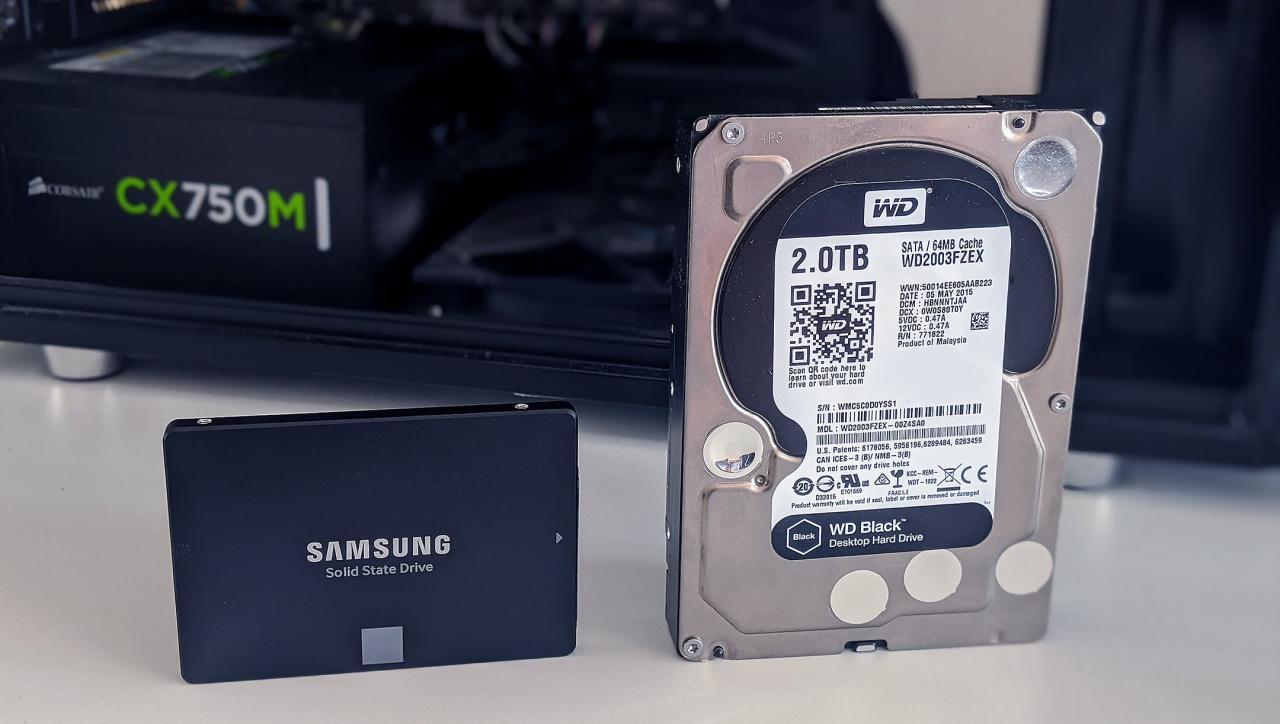
Cloning an entire operating system is a powerful tool, but sometimes you need more granular control. Advanced techniques allow you to clone specific partitions, multi-boot systems, or even just selected data folders, ensuring data integrity and flexibility. These methods are particularly valuable for maintaining backups and migrating data effectively.
Cloning Partitions
Partition cloning allows you to replicate a specific portion of a hard drive, such as a system drive, data drive, or even a swap partition. This approach is useful for isolating a specific data set for backup or migrating to a new storage device. Understanding the intricacies of partition cloning helps avoid unintended consequences and preserves data integrity.
Benefits of Cloning Partitions
Partition cloning offers several advantages over full system cloning. It allows you to target specific data without unnecessary duplication of entire drives. This is particularly important when you want to migrate only a specific data partition to a new drive. Furthermore, it enables selective backups and restorations of critical data sets.
Techniques for Cloning Partitions and Data Integrity
Several techniques for cloning partitions exist, each with varying degrees of impact on data integrity. The method chosen depends on the specific requirements and the software used. Some software allows for direct partition-level cloning, ensuring the exact structure and data are copied. Other cloning methods require additional steps to maintain the integrity of the partition structure.
Cloning a Multi-Boot System
A multi-boot system, which allows for multiple operating systems on a single drive, presents unique cloning challenges. Successful cloning of a multi-boot system requires careful consideration of the boot loader and its interaction with the different operating systems. Failure to correctly handle the boot loader can lead to system instability or the inability to boot from any of the operating systems.
The cloning software must be able to preserve the boot loader configuration and its interaction with the various operating systems installed on the drive.
Cloning Specific Data Folders
Cloning only specific data folders is a powerful feature that enables granular data backups and migrations. This technique focuses on copying selected data, minimizing storage space requirements and enabling faster data transfer. This is extremely useful for backing up important files without unnecessary redundancy.
Step-by-Step Guide for Cloning Specific Data Folders
- Identify the folders: Determine the specific folders or files you want to clone. Consider using a folder selection tool within the cloning software, or use the operating system’s file explorer.
- Select the destination drive: Choose the new drive where you want to copy the selected folders. Ensure sufficient free space is available.
- Run the cloning software: Use the selected cloning software and initiate the cloning process, specifying the source folders and the destination drive. The software will create a copy of the selected data.
- Verify the copy: After the process completes, check the integrity of the cloned folders by examining their contents. Ensure that all files and folders are correctly copied.
Security Considerations
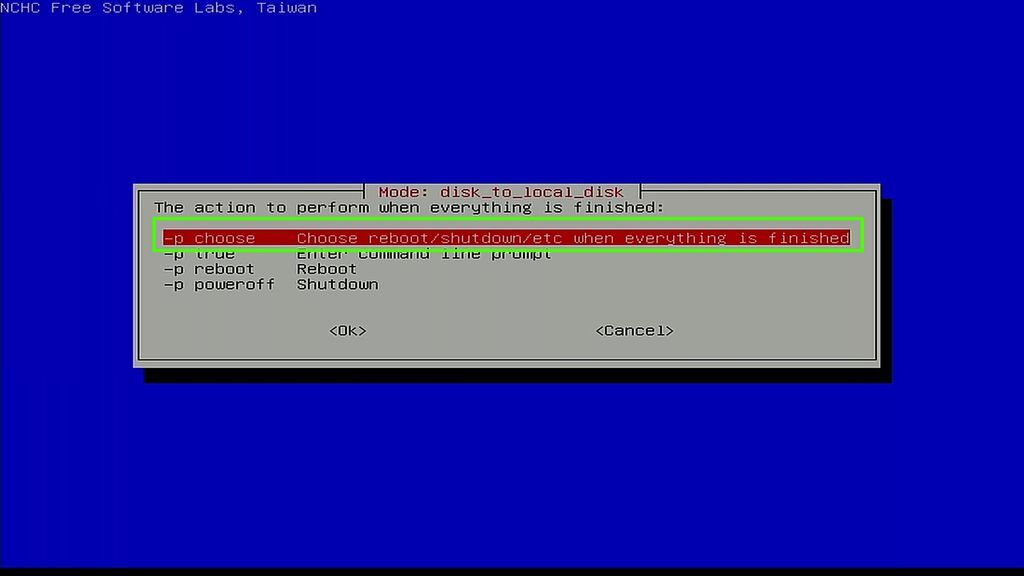
Ensuring the security of your operating system during the cloning process is paramount. A successful clone not only replicates your data but also carries over any existing security vulnerabilities. This section delves into crucial security aspects to mitigate risks and maintain the integrity of your cloned system.Cloning, while a valuable tool, can expose sensitive data if not handled with care.
Understanding the risks associated with cloning and implementing appropriate security measures is vital to protect your system and data from potential threats.
Importance of Secure Cloning
Protecting sensitive data and maintaining system integrity during the cloning process is critical. Cloned systems inherit security vulnerabilities from the source system, which may include existing malware, weak passwords, or outdated security software. Therefore, securing the source and destination drives before and during cloning is crucial.
Best Practices for Securing Drives
Implementing secure practices for both the source and destination drives is essential for maintaining data integrity and preventing unauthorized access.
- Source Drive Security: Before initiating the cloning process, ensure that all sensitive data on the source drive is protected. This includes encrypting critical files and folders, disabling unnecessary network services, and disabling any unused accounts. Disabling unnecessary network services and unused accounts minimizes the attack surface of your system. Regularly updated anti-virus software on the source drive is also crucial for mitigating malware risks.
- Destination Drive Security: The destination drive should be formatted and initialized securely before cloning. Formatting securely erases all existing data on the drive, making it ready to receive the clone. This eliminates the possibility of sensitive data from the source drive leaking onto the destination drive, and ensures that the destination drive starts with a clean slate. Consider encrypting the destination drive to add an extra layer of security.
Security Checklist
A comprehensive checklist helps ensure all security measures are addressed before cloning.
| Step | Action |
|---|---|
| 1 | Verify all critical data is backed up off the source drive. |
| 2 | Ensure the destination drive is properly formatted and initialized. |
| 3 | Confirm encryption of sensitive files and folders on the source drive. |
| 4 | Disable unnecessary network services and unused accounts. |
| 5 | Install and update antivirus software on both source and destination drives. |
| 6 | Check for and address any security vulnerabilities on the source system before cloning. |
Risks Associated with Cloning and Mitigation
Cloning, while convenient, introduces certain risks. Careful planning and execution minimize these risks.
- Data Loss or Corruption: A poorly executed clone can lead to data loss or corruption on the destination drive. Using reputable cloning software and verifying the process thoroughly can help mitigate this risk. Using a reliable cloning tool and following a thorough verification process minimizes the chances of data loss or corruption during the cloning process.
- Malware Transfer: The clone may inherit malware from the source drive. Performing a thorough scan of the source drive before cloning, and installing updated anti-virus software on the destination drive, can significantly reduce the chance of transferring malware.
- Unauthorized Access: If the source or destination drive is not adequately secured, unauthorized access to sensitive data is possible. Using strong passwords, encryption, and access controls can protect the cloned system. Implementing strong passwords, encryption, and access controls minimizes the risk of unauthorized access to the system.
Securely Erasing the Old Hard Drive
Properly erasing the old hard drive is critical for data security. Simply deleting files isn’t sufficient. Specialized tools designed for secure data erasure are necessary. These tools overwrite the drive multiple times with random data to render any remaining data unrecoverable.
“Using a secure data erasure tool is crucial to prevent unauthorized access to sensitive data on the old hard drive.”
- Use a Secure Data Erasure Tool: Tools like DBAN (Darik’s Boot and Nuke) are designed to securely erase data, leaving no trace of the original data. This is especially important for drives containing sensitive information.
- Multiple Overwrites: Multiple overwrites of the drive with random data are essential for complete erasure. This effectively renders the data unrecoverable.
- Verification: After the erasure process, verify that the drive is inaccessible to prevent any data recovery attempts. This ensures that no data remains on the drive.
Optimization and Performance Tuning
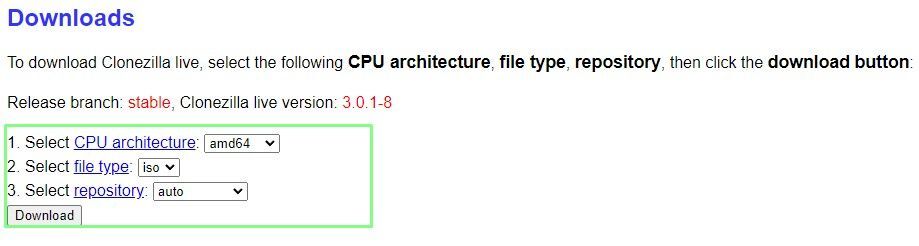
Optimizing a cloned operating system ensures smooth performance and a satisfying user experience. Proper tuning enhances system responsiveness, reduces loading times, and maximizes resource utilization. This section details strategies to achieve these goals, including software and hardware considerations.Post-clone optimization is crucial for maximizing the benefits of the cloned system. By addressing potential bottlenecks and inefficiencies, you can unlock the full potential of your new system and improve overall user experience.
System Setting Adjustments
Fine-tuning system settings can significantly impact performance. Adjusting power settings, for example, can optimize power consumption while maintaining system speed. Modifying startup applications and services can also reduce load times and enhance overall responsiveness. Adjusting virtual memory settings can further optimize system resource allocation. It’s essential to understand the impact of these adjustments on system stability and functionality.
Experimentation and observation are key to finding the optimal settings for your specific use case.
Disk Defragmentation and Performance Enhancement Tools
Disk defragmentation is a valuable tool for improving hard drive performance. By rearranging fragmented files, defragmentation reduces access time, leading to faster data retrieval. Furthermore, various performance enhancement tools are available. These tools can analyze system resource usage, identify potential bottlenecks, and suggest optimizations. For example, some tools can monitor disk I/O, memory usage, and CPU activity to pinpoint areas needing improvement.
Using these tools proactively can prevent performance degradation over time.
Identifying and Removing Unnecessary Files
Cloned systems may contain unnecessary or obsolete files from the original system. Identifying and removing these files frees up disk space, improves system responsiveness, and reduces potential clutter. Employing a methodical approach to file review and deletion can ensure that only essential files remain. This process should prioritize files that are no longer needed and are not used by applications.
A thorough analysis of file usage can aid in the process of removal.
Post-Clone System Optimization Checklist
This checklist provides a structured approach to optimizing a cloned system for optimal performance.
- Review and Adjust System Settings: Examine and modify power plans, startup applications, and virtual memory settings to enhance performance and stability.
- Defragment Hard Drives: Utilize defragmentation tools to rearrange fragmented files, improving file access speed.
- Uninstall Unnecessary Programs: Remove programs and applications that are no longer required, freeing up disk space and resources.
- Scan for and Remove Unnecessary Files: Identify and delete temporary files, logs, and other obsolete data to optimize disk space.
- Optimize Startup Programs: Analyze and reduce the number of programs running during startup, improving boot times and system responsiveness.
- Monitor System Performance: Use performance monitoring tools to track system resource utilization, identify bottlenecks, and optimize accordingly.
Final Conclusion
In conclusion, cloning your operating system to a new SSD is a powerful way to boost your computer’s speed and reliability. This guide has provided a comprehensive overview of the process, from initial preparation to final verification. By following the detailed steps and troubleshooting advice, you can confidently migrate your system and enjoy a significant performance upgrade. Remember to always back up your data before starting the cloning process.