Installing a new storage drive can significantly enhance your computer’s performance and storage capacity. This comprehensive guide provides a detailed walkthrough, covering everything from selecting the right drive to configuring it within your operating system. Whether you’re upgrading to an SSD, adding an external HDD, or installing a high-performance NVMe drive, this guide ensures a smooth and successful installation process.
From understanding the various types of storage drives and their respective form factors to the meticulous steps for connecting and configuring the drive, this guide will walk you through each crucial stage. We’ll also address potential issues and offer troubleshooting solutions, ensuring a seamless integration into your existing system.
Introduction to Storage Drives
![Access_the_batocera_via_ssh [Batocera.linux - Wiki]](https://wayzen.web.id/wp-content/uploads/2025/09/windows_install_avrispmkii_driver_31-4.png "Access_the_batocera_via_ssh [Batocera.linux - Wiki]")
Storage drives are fundamental components in any computer system, responsible for persistently storing data. Different types of storage drives cater to various needs, offering varying performance characteristics, capacities, and cost structures. Understanding these distinctions is crucial for selecting the appropriate drive for a specific application or system configuration.
Types of Storage Drives
Storage drives come in several forms, each with its own strengths and weaknesses. Solid State Drives (SSDs), Hard Disk Drives (HDDs), and NVMe drives are the most prevalent types. SSDs utilize flash memory for data storage, offering significantly faster read/write speeds than HDDs. HDDs employ spinning platters and magnetic heads, providing greater storage capacity at a lower cost per gigabyte.
NVMe drives, a more recent technology, combine the speed of SSDs with advanced interface protocols, achieving very high transfer rates.
Form Factors
The physical dimensions of storage drives, known as form factors, are crucial for compatibility with different computer systems. Common form factors include 2.5″ and 3.5″ for HDDs, commonly used in laptops and desktops, respectively. SSDs and NVMe drives often utilize smaller form factors like M.2, designed for integration into modern motherboards.
Choosing the Right Drive
Selecting the appropriate storage drive depends on specific requirements. For applications demanding high performance, such as gaming or video editing, an SSD or NVMe drive is ideal. If capacity is the primary concern, an HDD might be a more cost-effective choice. Factors like durability, power consumption, and the overall system architecture should also be considered when making a selection.
Drive Type Comparison
| Drive Type | Speed | Capacity | Cost |
|---|---|---|---|
| SSD | High (typically faster than HDDs, comparable or faster than NVMe drives in some cases) | Moderate to High (can vary greatly) | Medium to High (generally more expensive per gigabyte than HDDs) |
| HDD | Low (significantly slower than SSDs and NVMe drives) | High (generally offers the largest storage capacity per dollar) | Low (generally the least expensive per gigabyte) |
| NVMe | Very High (typically very fast) | Moderate to High (similar capacity range to SSDs) | Medium (generally more expensive per gigabyte than HDDs but less than high-end SSDs) |
Key Considerations
Selecting the correct storage drive involves several key considerations:
- Performance Requirements: The intended use of the drive (e.g., browsing the web, gaming, or running demanding applications) will dictate the necessary speed. High-performance applications will require faster drives.
- Storage Capacity: The amount of data that needs to be stored will influence the required capacity. Large datasets will necessitate drives with high storage capacities.
- Budget: The cost of the drive is a significant factor. A balance between performance, capacity, and price is often necessary.
- Compatibility: Ensure the drive’s form factor and interface are compatible with the system’s motherboard and other components.
- Durability: The drive’s ability to withstand physical shocks and environmental factors is important, particularly for mobile devices or systems in demanding environments.
Preparing for Installation
Before installing a new storage drive, meticulous preparation is crucial for a successful and safe installation process. Proper planning minimizes potential risks and ensures the drive is integrated seamlessly into your computer system. A well-executed installation procedure not only saves time but also protects your existing data and the integrity of your hardware.Careful consideration of the necessary tools, a secure environment, and data backup procedures are essential steps in this process.
Failing to take these precautions can lead to data loss, hardware damage, or installation complications.
Necessary Tools and Equipment
A successful storage drive installation relies on the correct tools. This ensures the drive is installed correctly and minimizes the risk of damage to the computer or the drive itself. The following items are commonly needed:
- A Phillips-head screwdriver (or the appropriate screwdriver for your computer’s screws): Incorrect screwdriver type can strip screws or damage the case.
- An anti-static wrist strap or mat: This is vital to prevent static electricity from damaging the drive or your computer’s components. Static electricity can lead to malfunctions or complete failure.
- A clean, lint-free cloth: For cleaning the drive and the computer’s internal components before installation to remove dust or debris.
- A storage drive installation guide (if available): Referencing the manufacturer’s instructions is recommended to avoid any mistakes.
Creating a Safe and Secure Installation Environment
A clean and controlled environment minimizes the risks of damaging the drive or computer components. This involves several steps:
- Disconnecting the Computer from the Power Source: This is a critical step to prevent electrical hazards and ensure a safe installation environment.
- Working on a Static-Free Surface: This helps to avoid static electricity damage to the components.
- Ensuring Adequate Lighting: Proper lighting allows for clear visibility of the components, minimizing errors.
- Checking for Sufficient Space: Confirm the installation area has enough space to work comfortably without any obstructions.
Backing Up Data Before Installation
Backing up data before installing a new storage drive is a critical step in preventing data loss. Data loss during or after the installation process can be disastrous, leading to significant inconvenience and financial loss.
- Importance of Data Backup: Before beginning any hardware installation, it’s crucial to back up all critical data to an external hard drive, cloud storage, or other reliable media. Data backup ensures that your existing data is safe, even if the installation process encounters problems.
- Methods for Data Backup: Data backup methods can include using external hard drives, cloud storage services, or other data backup solutions.
The choice depends on the volume of data, budget, and personal preferences.
Potential Risks and Errors
During the installation process, several potential risks and errors can occur. These risks can be mitigated with proper preparation and adherence to the installation guide.
- Incorrect Drive Installation: Inserting the drive incorrectly can cause damage to the drive or the computer’s internal components.
- Static Electricity Discharge: Failing to use an anti-static wrist strap can lead to a static discharge, potentially damaging the drive or computer components.
- Hardware Conflicts: Incompatible hardware or incorrect configuration settings can result in conflicts and prevent the drive from being recognized.
Troubleshooting Common Installation Issues
Troubleshooting steps are crucial for resolving any issues encountered during the installation process. Addressing problems quickly can save time and frustration.
- Drive Not Recognized: Check the drive’s connections, verify the drive is correctly seated, and ensure the drive is recognized by the operating system. If the issue persists, check the drive’s compatibility with the computer.
- Drive Failure During Installation: If the drive fails during installation, stop the installation process immediately, disconnect the drive, and contact the manufacturer or technical support for assistance.
- Incorrect Driver Installation: Ensure the correct drivers are installed for the drive to function correctly.
Disconnecting the Computer from the Power Source
This step is crucial for safety and prevents potential electrical hazards.
- Locate the power switch or button on the computer case.
- Turn the computer off using the power button.
- Unplug the power cord from the wall outlet.
Installing the Drive
Installing a new storage drive, whether internal or external, is a crucial step in expanding your computer’s storage capacity. Careful attention to the specific drive type and appropriate procedures is vital for a successful installation. Proper installation minimizes the risk of damage to both the drive and the computer.The process of installing a storage drive involves several key steps.
These steps, carefully followed, ensure a smooth and efficient installation process. Understanding the nuances of internal, external, and NVMe drive installation is paramount for achieving a successful outcome.
Internal Drive Installation
The installation of an internal drive typically involves accessing the computer’s internal drive bay. This is often located inside the computer’s chassis. Disconnecting power to the computer is an essential safety precaution before starting the installation.
| Step | Action | Image Description | Potential Issue |
|---|---|---|---|
| 1 | Open the computer case and locate the drive bay. | A clear view of the computer’s interior, highlighting the drive bay’s location. The bay may be a designated slot or a removable panel. | Incorrect identification of the drive bay. |
| 2 | Disconnect the computer from the power source. | A visual representation of the power cable disconnected from the computer. | Failure to disconnect the power. |
| 3 | Remove the existing drive (if applicable) from the drive bay. | Illustrative steps of removing a drive. This may involve detaching cables or using a tool for securing the drive. | Damaging the drive during removal or misidentifying the existing drive. |
| 4 | Connect the new drive to the drive bay’s mounting mechanism. | The new drive correctly mounted in the drive bay, demonstrating proper cable connections and securing. | Incorrect mounting of the drive, causing damage or instability. |
| 5 | Reconnect the computer to the power source and close the computer case. | Close-up of the computer case, with all components properly installed and secured. | Incorrect reconnection of cables or components. |
External Drive Installation
External drives are typically connected via USB, Thunderbolt, or other external interfaces. The process is generally simpler than installing an internal drive.
- Identify the appropriate connection port on your computer and ensure it is free of obstructions. This includes ensuring there are no loose cables or items obstructing the connection.
- Connect the external drive to the computer using the appropriate cable. The correct cable type is essential for a successful connection.
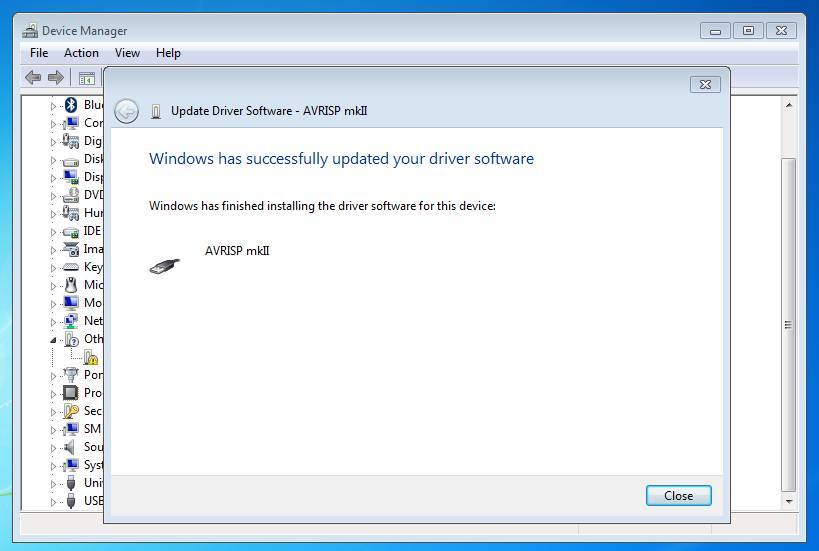
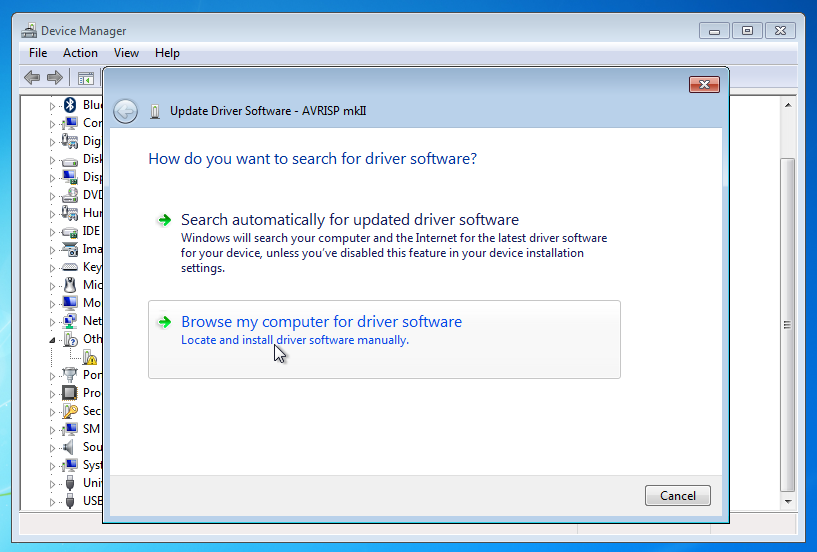
- The computer should automatically detect the external drive. If not, check the device manager to ensure the drive is recognized by the system. If necessary, install any required drivers.
NVMe Drive Installation
NVMe drives are high-performance drives utilizing a specific interface. Installation procedures often involve using specialized tools or a specific drive bay for optimal performance. The process often differs significantly from traditional SATA or SAS drives.
- Identify the correct NVMe slot or port on your motherboard. The slot is typically designated with a unique label or identification.
- Ensure the NVMe drive is compatible with your computer’s motherboard and operating system. Compatibility issues can lead to installation failures or reduced performance.
- Install the NVMe drive into the designated slot, using the appropriate mounting mechanisms provided. Proper handling and care are essential to prevent damage.
- Confirm the drive is recognized by the system. This can be done through the operating system’s disk management tools.
Comparison of Installation Methods
Different drive types require different installation procedures. Internal drives necessitate opening the computer case, while external drives connect directly to the computer. NVMe drives demand specific slots and careful attention to compatibility.
Flowchart of Storage Drive Installation
[A flowchart image would be presented here, showing the steps for internal, external, and NVMe drives, branching out from a starting point. The flowchart would illustrate the decisions to be made and the subsequent actions required for each type of drive installation. A descriptive text version would follow below the image, detailing each step of the process.]
Connecting and Configuring the Drive
Connecting a new storage drive involves physically attaching it to the computer and then configuring it within the operating system. Proper connection and configuration are crucial for the drive to be recognized and utilized by the system. This process varies slightly depending on the type of drive and the computer’s motherboard.
Connecting the Drive to the Motherboard
The method for connecting a drive to the motherboard depends on the type of drive. Internal hard drives (HDDs) and solid-state drives (SSDs) typically use SATA (Serial Advanced Technology Attachment) connections. These cables connect the drive to a SATA port on the motherboard. Ensure the drive’s SATA data cable is securely plugged into both the drive and the SATA port.
Additionally, connect the power cable from the power supply to the drive’s power connector. Ensure all connections are firmly seated.
Different Connection Methods for Drive Types
Different drive types utilize various connection methods. SATA, as mentioned, is a common standard for hard drives and some SSDs. For newer, high-performance SSDs, NVMe (Non-Volatile Memory Express) connections are frequently used. These NVMe drives utilize a different interface and connector, typically requiring a dedicated NVMe slot on the motherboard. Carefully identify the appropriate connection method for the specific drive and motherboard.
Configuring the Drive in the Operating System
After physically connecting the drive, the operating system needs to recognize and initialize it. The operating system will typically automatically detect the new drive and display it as a new disk drive. If the drive isn’t automatically detected, check the device manager in the operating system to verify the drive is recognized. The drive may require formatting before use.
Checking Drive Status in the Operating System
The operating system provides tools for checking the status of storage drives. These tools vary depending on the specific operating system. Typical checks include verifying the drive’s size, checking for errors, examining the drive’s health, and assessing the free space.
- Disk Management (Windows): This tool allows you to view disk partitions, initialize disks, and format drives.
- Disk Utility (macOS): Similar to Disk Management, Disk Utility provides a graphical interface for managing disks, partitions, and volumes.
- Drive Management Tools (Linux): Linux distributions often have their own dedicated tools for managing disk partitions, volumes, and drive health.
These tools provide a comprehensive view of the drive’s status.
Formatting the Drive
Formatting a drive prepares it for use by the operating system. It involves creating a file system (e.g., NTFS, FAT32, exFAT, APFS) on the drive. Formatting erases all data previously on the drive.
- Locate the drive in the operating system’s disk management tool.
- Select the drive and choose the “Format” option.
- Choose the desired file system for the drive. NTFS is often the preferred choice for Windows systems.
- Specify the volume label for the drive (an optional descriptive name).
- Click “Format” to begin the process.
Formatting is a critical step for the drive to function properly.
Drive Partitioning Options
Partitioning a drive divides it into multiple logical sections. This allows for organizing data on the drive and improving performance in some cases. Primary partitions are the main storage areas, while extended partitions can contain logical partitions. The choice of partitioning depends on the user’s needs and the operating system.
- Single Partition: A single partition is sufficient for most users who want a straightforward storage area.
- Multiple Partitions: Multiple partitions can be used for organizing data (e.g., separating operating system, applications, and data storage).
- Boot Partition: A dedicated boot partition stores the operating system’s boot files. This is crucial for the system to start up correctly.
Appropriate partitioning strategies are vital for data management and system performance.
Testing and Verification
After successfully installing the new storage drive, rigorous testing and verification are crucial to ensure its proper functionality and integration into the system. This process guarantees the drive is operating as expected and identifies any potential issues early on, saving time and effort in the long run.Thorough testing ensures data integrity and system stability, minimizing the risk of data loss or system malfunctions.
Proper verification procedures confirm the drive’s capacity, speed, and health status, offering peace of mind for users.
Testing Drive Functionality
To confirm the new drive is functioning correctly, perform these steps. First, access the file explorer or equivalent file management tool. Verify the drive appears in the list of available storage devices. Next, create a small test file or folder on the drive and then attempt to open or access it. If the drive does not mount or files cannot be accessed, troubleshoot immediately to identify the cause.
Verifying Drive Capacity and Speed
Drive capacity and speed are vital metrics for understanding the drive’s performance. Use the operating system’s built-in tools to check the drive’s total capacity. Utilize benchmarking software to measure read and write speeds. These tools provide quantitative results that allow for comparison to other drives or predicted performance. Compare the results to the drive’s specifications to ensure there are no significant discrepancies.
Checking Drive Health Status
Regularly monitoring the drive’s health is essential to prevent potential data loss. Operating systems often include tools for checking the drive’s SMART (Self-Monitoring, Analysis, and Reporting Technology) status. SMART data provides insights into the drive’s health, including temperature, error rates, and other critical indicators. Review these reports to identify potential issues and take appropriate preventative measures.
Troubleshooting Common Issues
Encountering issues after installation is common. If the drive does not appear in the system, check connections and ensure the drive is properly recognized by the system. If the drive is recognized but files cannot be accessed, examine the drive’s file system and formatting. If there are performance issues, consider checking for conflicts with other devices or applications.
Seek professional assistance if the problem persists.
Potential Drive Errors and Solutions
| Error | Description | Cause | Solution |
|---|---|---|---|
| Drive not recognized | The operating system does not detect the drive. | Incorrect connection, faulty cable, or driver issues. | Check connections, ensure correct drivers are installed, and restart the system. |
| Drive is inaccessible | Files on the drive cannot be accessed. | File system errors, permissions issues, or drive corruption. | Run file system checks, check file permissions, or consider professional data recovery services if needed. |
| Slow read/write speeds | Transfer rates are significantly slower than expected. | Drive malfunction, performance bottlenecks, or system conflicts. | Check for conflicts with other devices, run performance tests, and consider replacing the drive if necessary. |
| SMART alerts | Drive health indicators show potential issues. | Wear and tear, internal drive errors, or temperature issues. | Monitor the drive closely, back up critical data, and consider replacing the drive if SMART alerts persist. |
Accessing Drive Properties in the Operating System
Drive properties provide detailed information about the drive, including capacity, file system, and other characteristics. Navigate to the file explorer or equivalent file management tool. Select the drive to view its properties. This information is critical for understanding the drive’s configuration and performance.
Additional Considerations
Ensuring the longevity and reliable operation of your new storage drive requires careful consideration beyond the installation process. Proper maintenance and understanding of potential pitfalls are crucial for preserving data and maximizing the drive’s lifespan. This section will delve into vital aspects such as drive failure prevention, system upgrades, and the use of helpful management tools.Careful planning and proactive measures can mitigate the risk of data loss and drive failure.
Understanding potential issues and implementing preventative strategies will help ensure the integrity of your data and the continued functionality of your storage system.
Potential Issues and Data Loss Prevention
Drive failures, unfortunately, are a possibility. Understanding the causes and symptoms can help prevent significant data loss. Physical damage, such as dropping or improper handling, can lead to drive failure. Similarly, overheating due to insufficient airflow or inadequate cooling solutions can cause component degradation and eventual failure. Power surges or fluctuations in the electrical supply can also result in data corruption or drive failure.
Implementing surge protection devices and maintaining stable power conditions is vital. Furthermore, software errors, operating system issues, or improper configuration settings can lead to data corruption or loss.
Maintaining Storage Drive Health
Regular maintenance is crucial for prolonging the lifespan of your storage drive. Consistent monitoring of drive temperatures, ensuring adequate airflow, and adhering to manufacturer guidelines for power management and usage are all essential steps. Implementing automated drive health checks, utilizing diagnostic tools offered by the operating system or specialized software, allows for early detection of potential issues. This proactive approach enables timely intervention to prevent catastrophic drive failures and associated data loss.
Upgrading Existing Storage Systems
Upgrading an existing storage system often involves careful planning to ensure compatibility and data integrity. If you’re considering upgrading to a larger or faster storage drive, compatibility with your existing system is paramount. Compatibility with the motherboard, the operating system, and the necessary hardware components are critical to a successful upgrade. Thorough research and planning are crucial for a seamless transition and data preservation.
For instance, upgrading to an NVMe drive may require a motherboard with NVMe support, or a change to your storage controller. Migrating data to the new drive carefully, using reliable data migration tools, is an essential step.
Storage Management Tools and Utilities
Numerous tools and utilities are available for managing storage devices. These utilities offer features for monitoring drive health, performing backups, and optimizing storage performance. Disk Management (Windows) or Disk Utility (macOS) are built-in utilities that provide basic drive management functionalities. More advanced tools and third-party software can offer enhanced features like advanced monitoring, automated backups, and data compression, providing valuable insights into drive performance and health.
Tools like CrystalDiskInfo can be helpful in assessing drive health parameters.
Importance of Regular Drive Maintenance
Regular drive maintenance is a proactive measure against potential failures. By consistently monitoring drive health and implementing preventative measures, you minimize the risk of unexpected failures and associated data loss. A consistent maintenance schedule should include regular diagnostic checks, temperature monitoring, and appropriate airflow around the storage device. This approach can help prevent premature wear and tear, maintaining optimum drive performance and reliability.
Checklist for Verifying a Successful Installation
A thorough checklist is invaluable for ensuring a successful installation. A checklist should include steps for verifying drive connectivity, configuration, and performance. Verification of drive access, capacity, and performance metrics is essential to confirm successful installation. This verification should involve confirming the drive is correctly recognized by the operating system, that all required drivers are installed, and that all allocated space is accessible.
- Verify drive connectivity.
- Confirm drive configuration.
- Test drive performance.
- Validate data integrity.
- Assess drive health status.
Ultimate Conclusion
This guide has provided a comprehensive approach to installing a new storage drive. By understanding the different drive types, preparing your system adequately, and following the step-by-step instructions, you can confidently install and configure your new drive. Remember to back up your data and carefully follow the provided procedures for a successful installation and to avoid potential data loss.